File Vault walkthrough
File Vault stores encrypted documents for your local portal account. Your browser encrypts file contents, filenames and media types before upload, and decrypts authorized files when downloading. The server stores ciphertext and encrypted keys. Your portal password signs you in; a separate recovery key unlocks your file encryption keys.
The app is embedded in caddy-security v1.6.2 / go-authcrunch v1.5.0 at
/auth/documents/ for a portal mounted at /auth. Follow the
local application setup to enable the Documents API and
configure its database, public HTTPS origin, mount and local realm. Sign in
with a current local browser login and authp/user or authp/admin.
Administrator status does not grant access to other people's files.
The screenshots below come from the supplied AuthCrunch UI v1.1.4 File Vault
demo, captured October 27, 2026 with real Caddy/AuthCrunch and disposable
accounts. Its portal is /xauth, so replace that prefix with your configured
mount, such as /auth. UI, integration and library versions are separate.
The supplied report records all eight journeys passing on desktop and mobile;
screens from different journeys use independent accounts and storage.
1. Sign in and find your way around
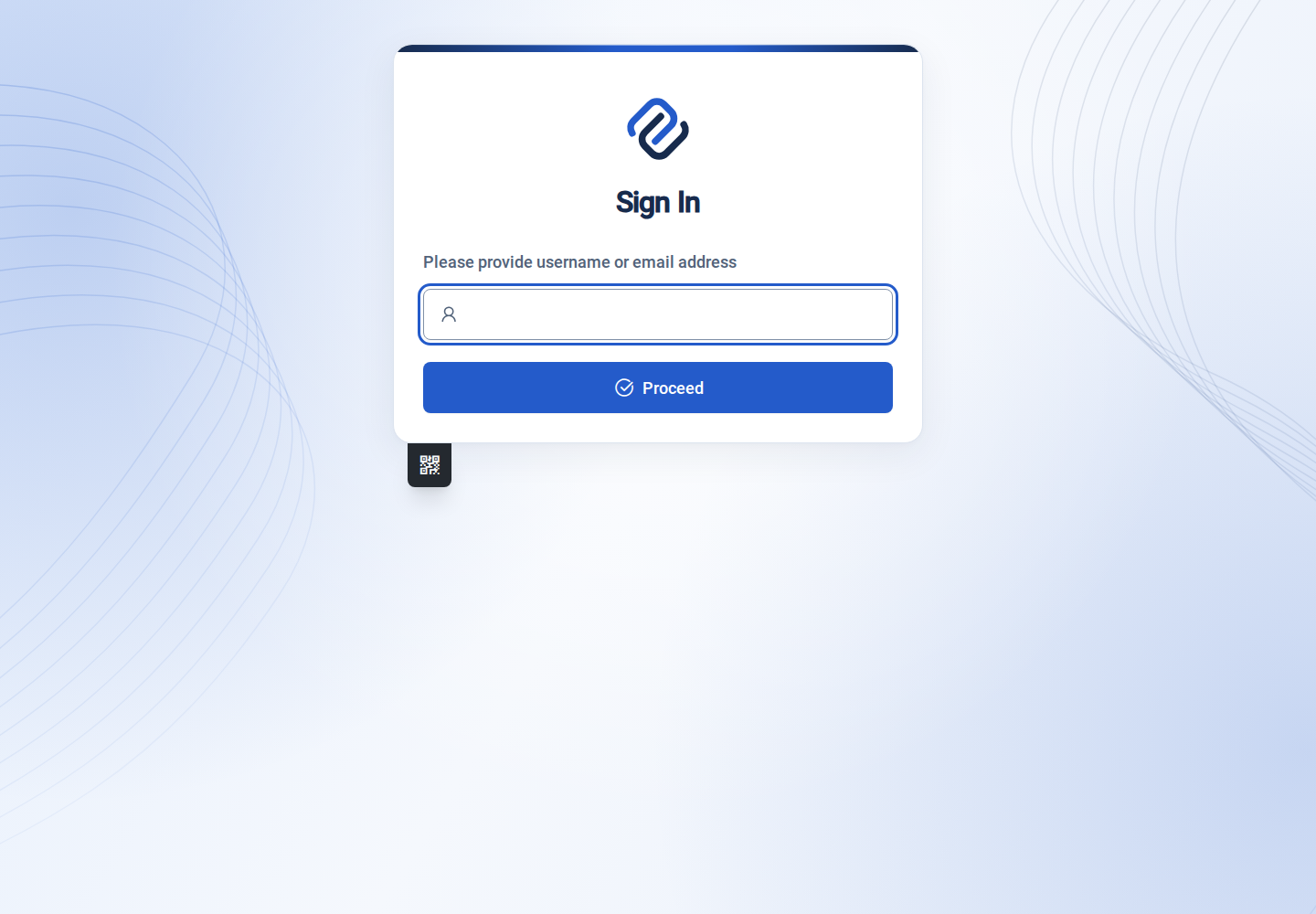
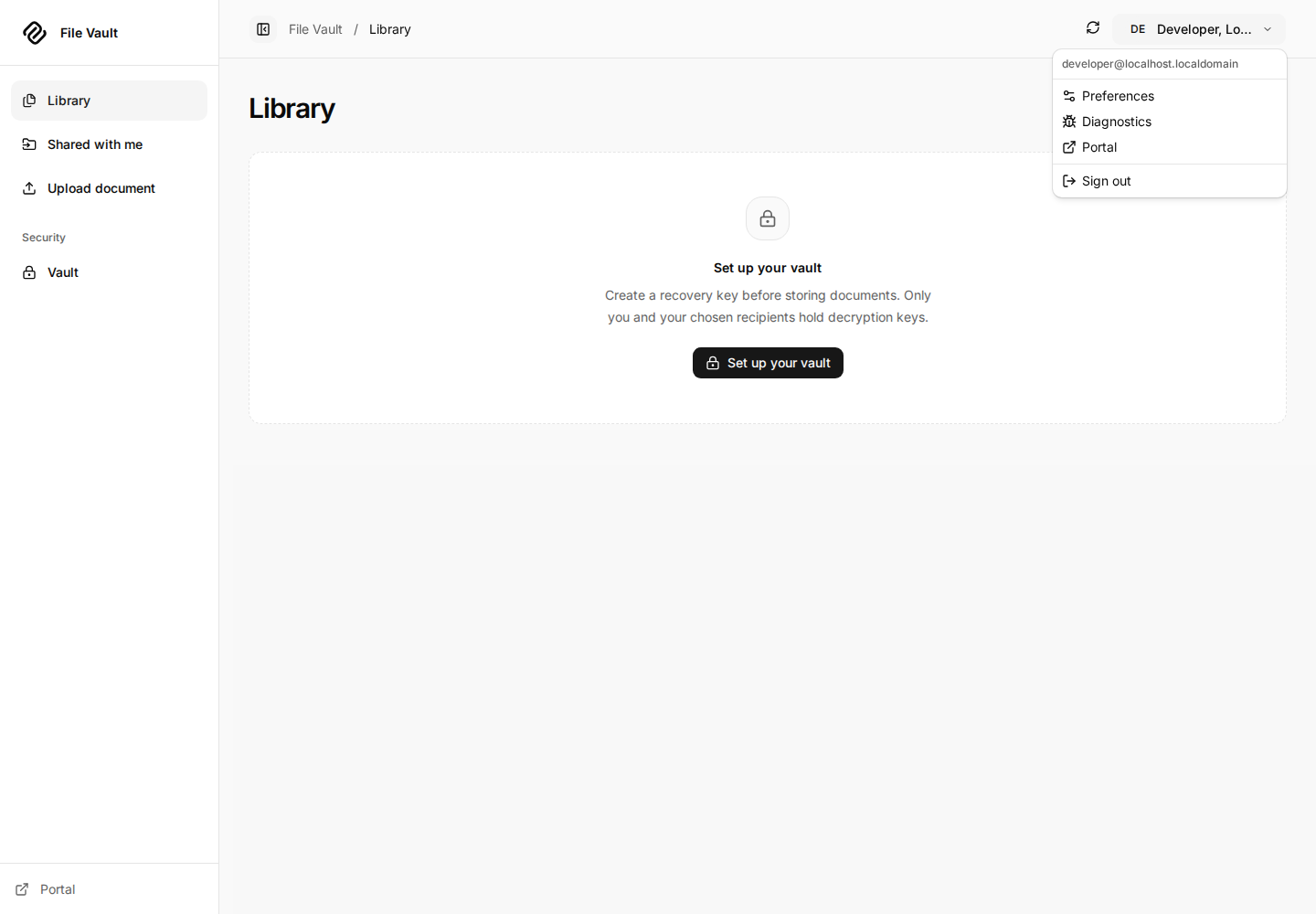
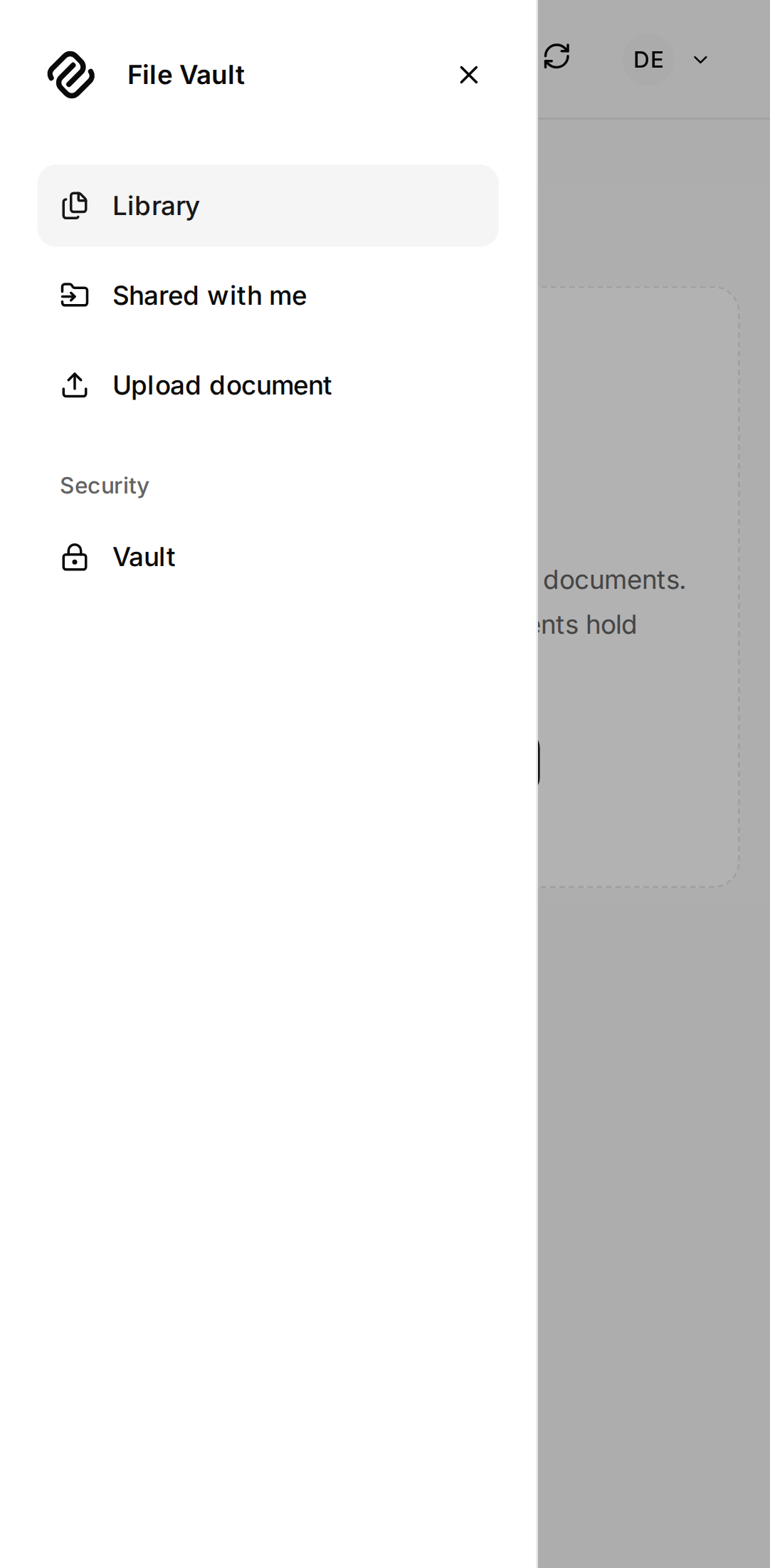
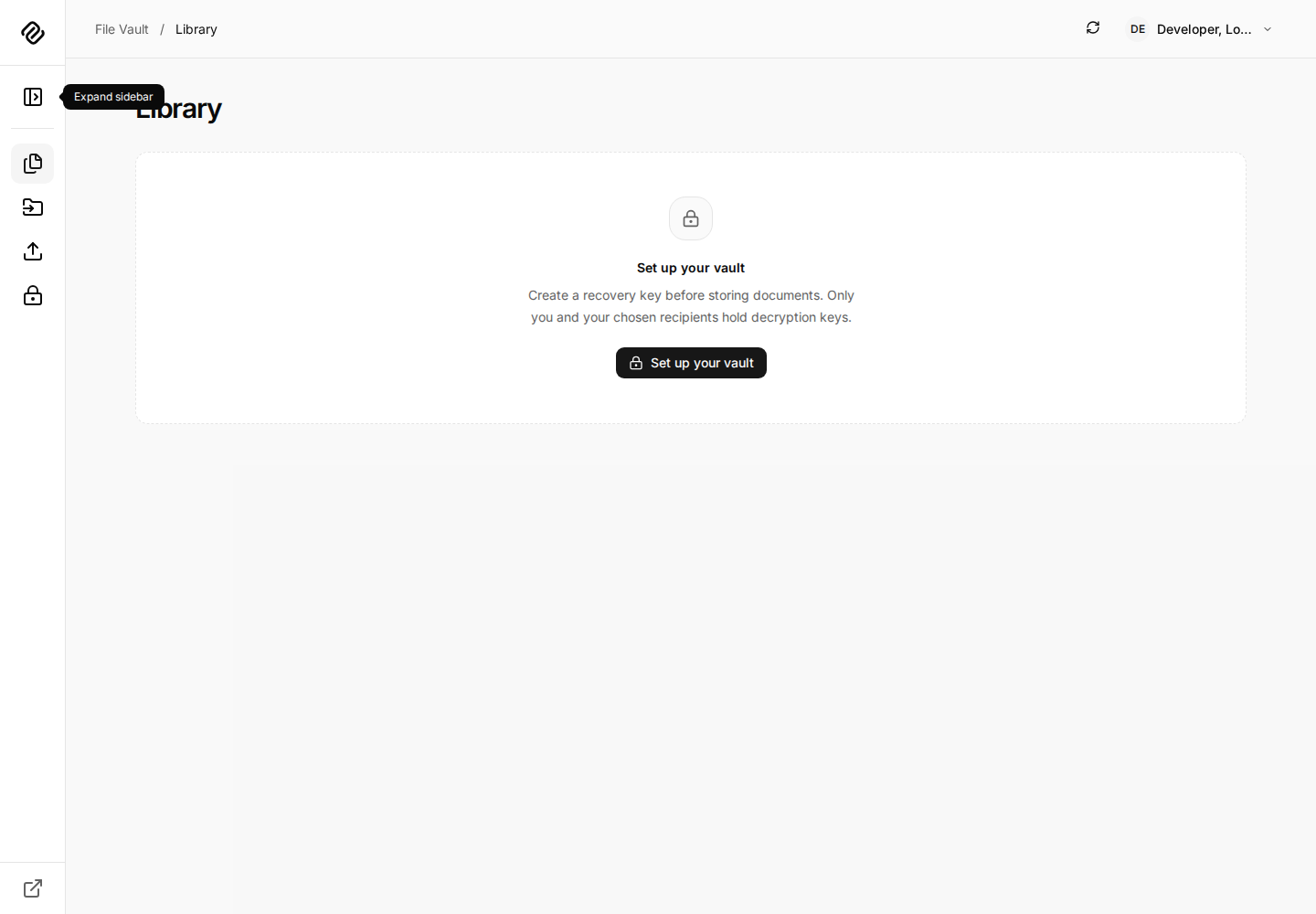
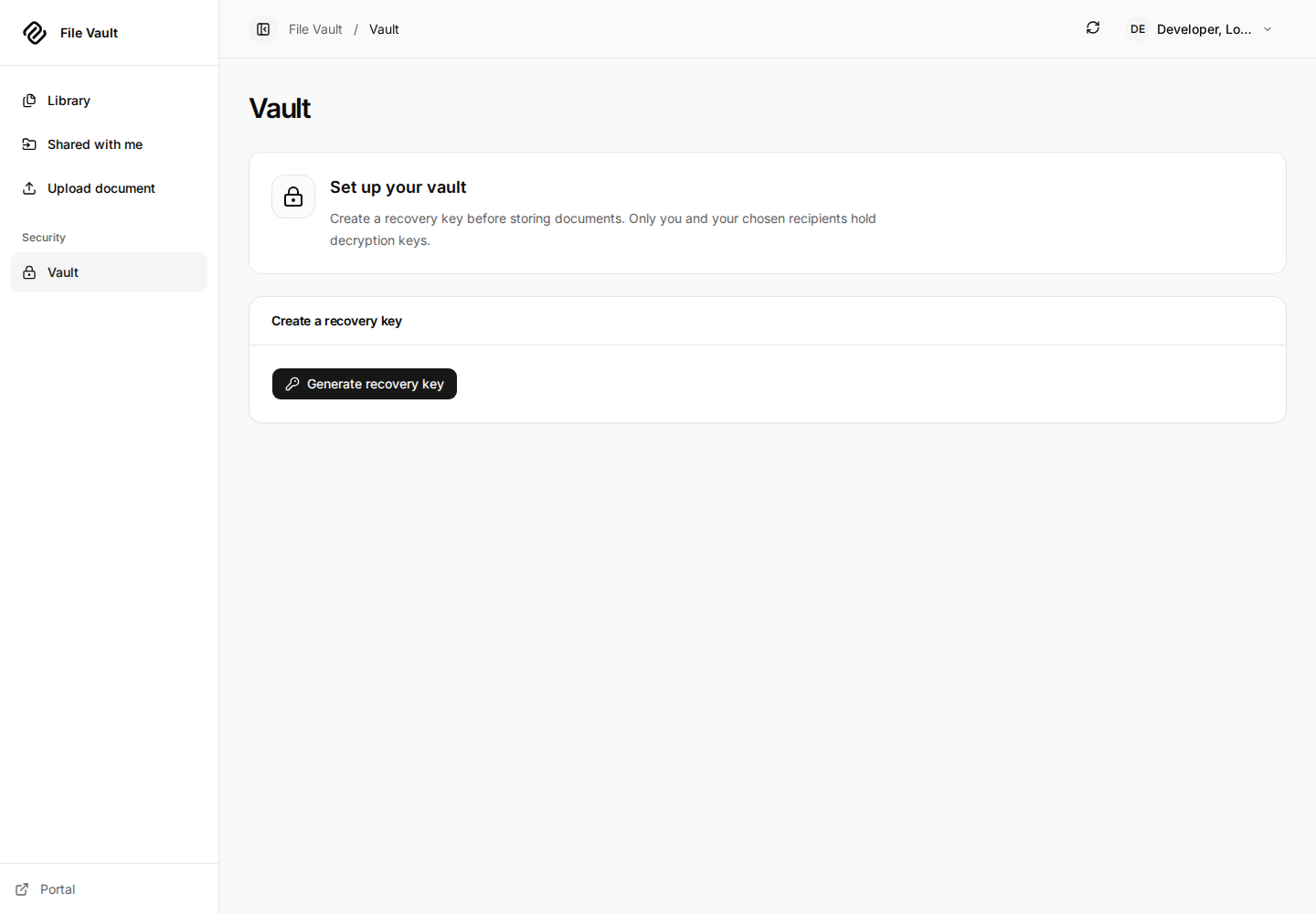
Open File Vault from the portal. A first visit shows Set up your vault. The sidebar contains Library, Shared with me, Upload document, and Vault. The avatar menu contains Preferences, Diagnostics, Portal, and Sign out. Use the sidebar toggle for a compact desktop rail or the navigation drawer on a phone.
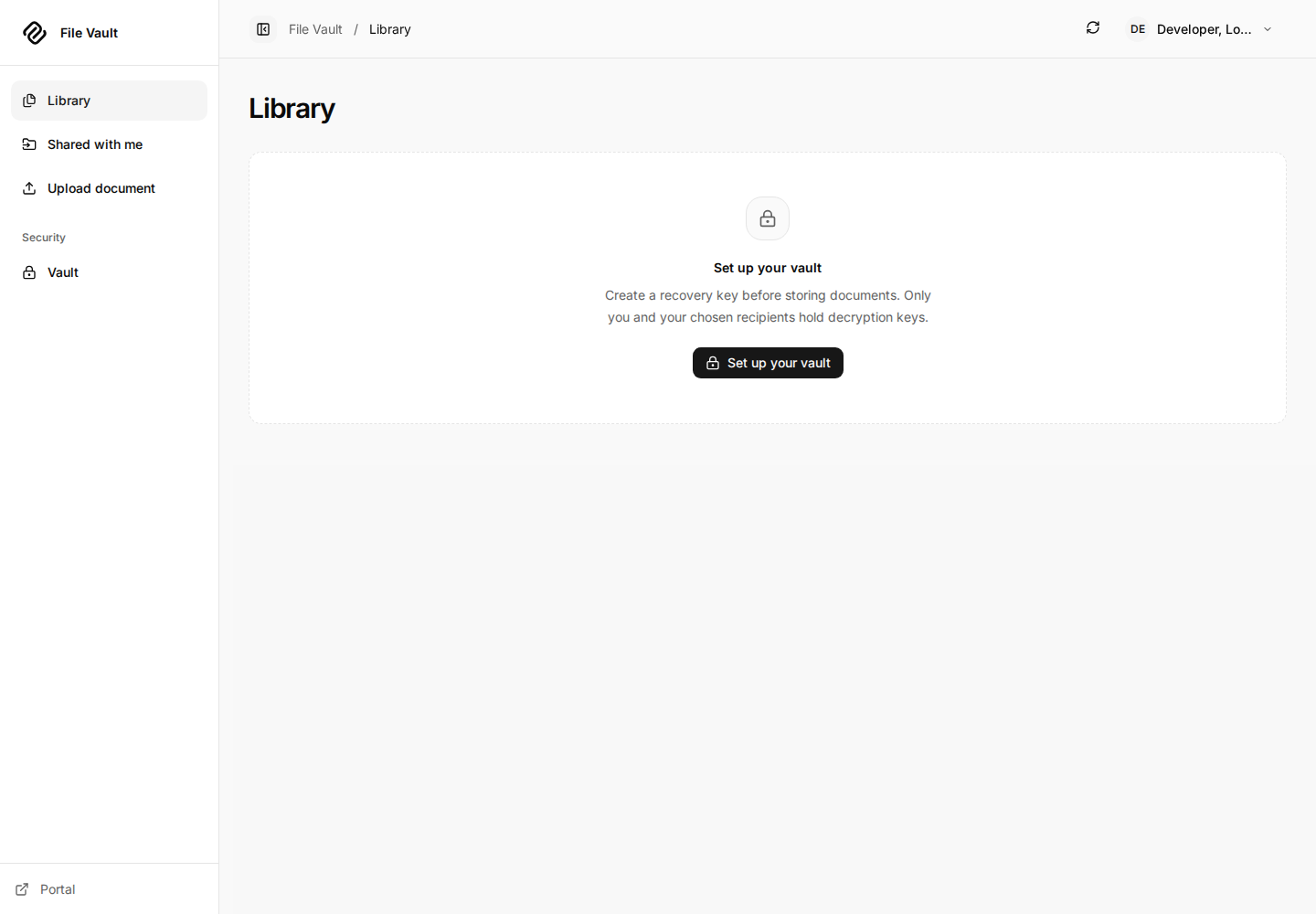
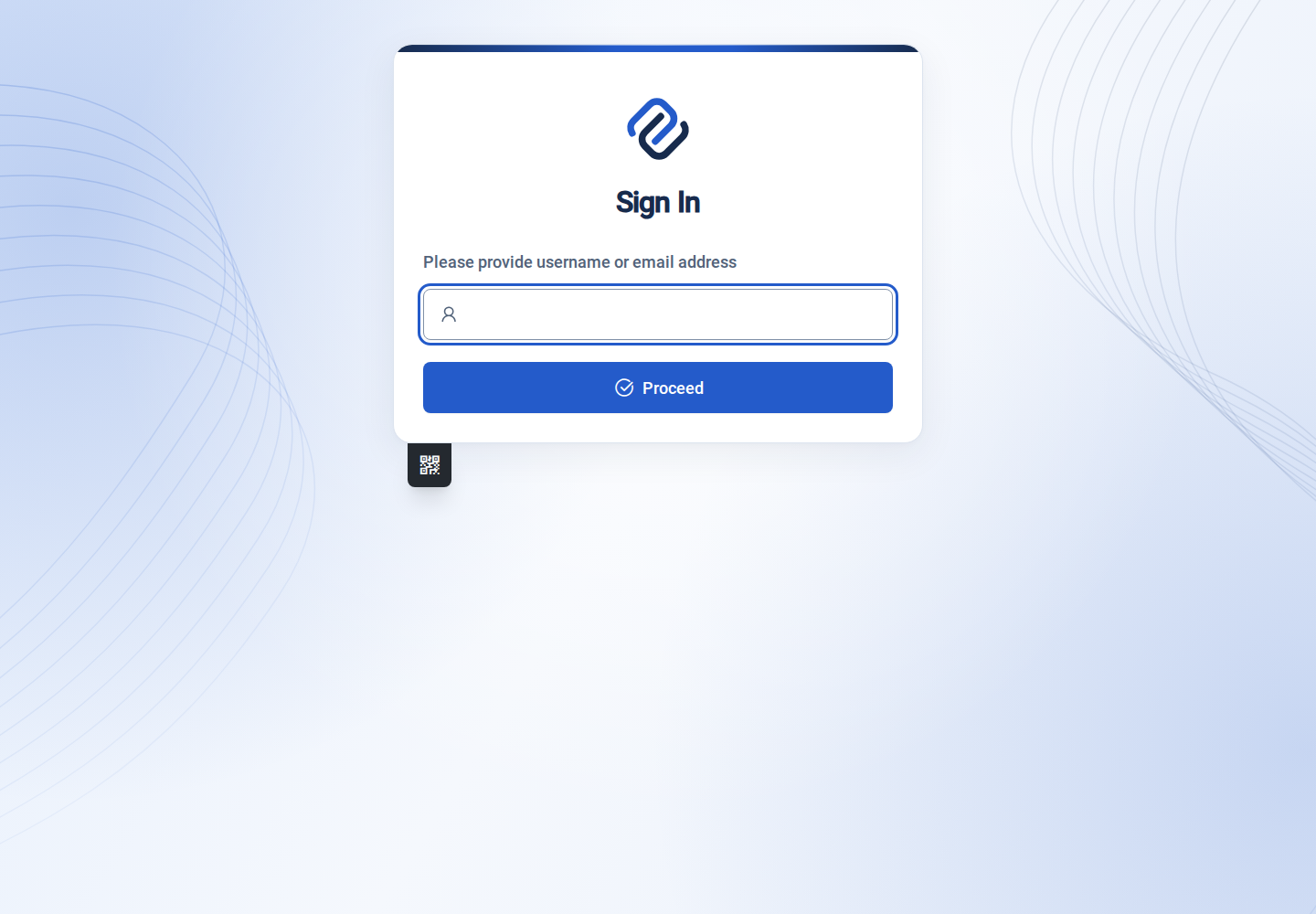
Portal sign-in, account menu and mobile navigation
2. Generate and save a recovery key
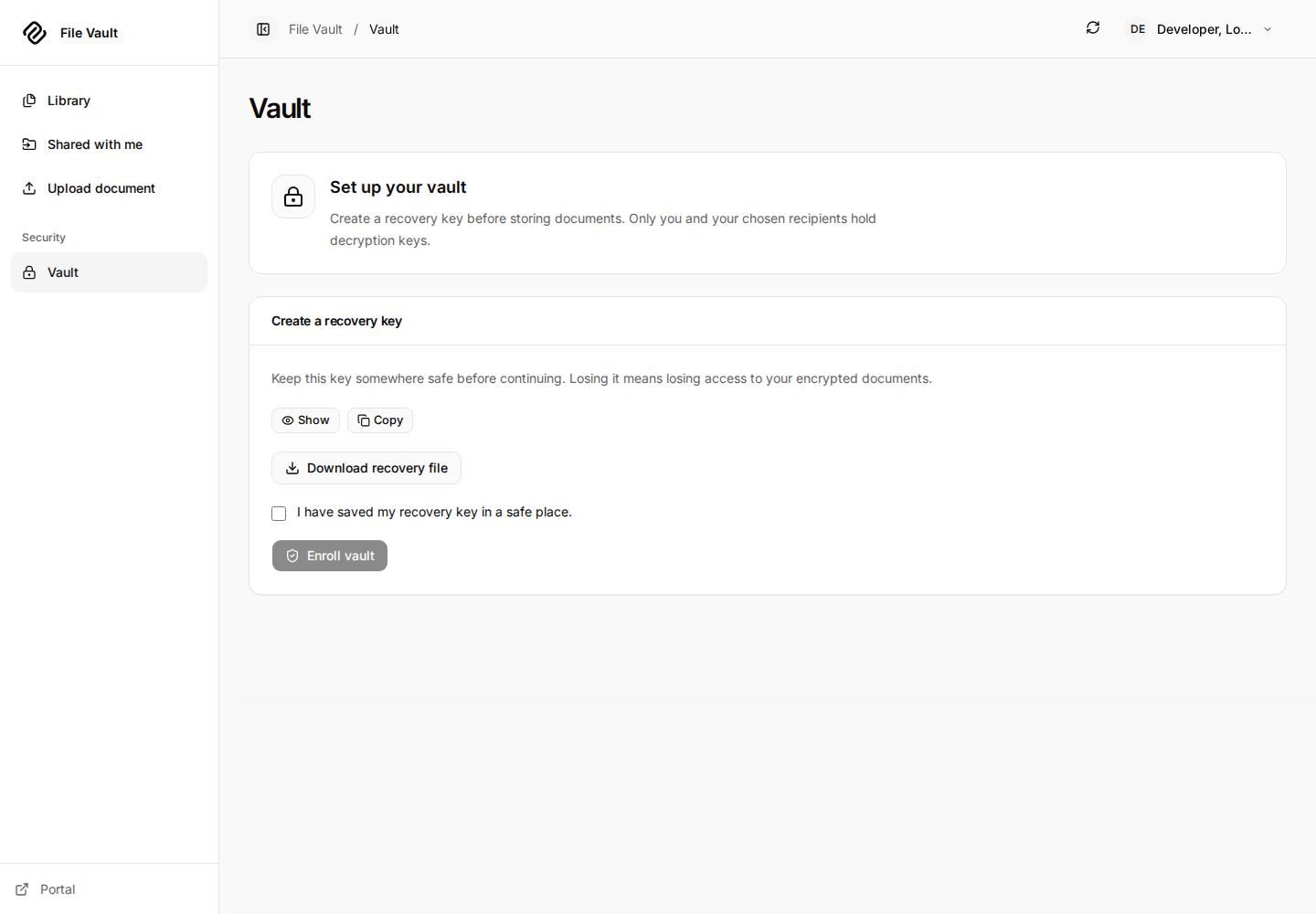
- Open Vault or select Set up your vault.
- Choose Generate recovery key. The browser creates a random secret; it is independent of your login password.
- Choose Download recovery file and keep the file somewhere private and recoverable outside this vault. You may also reveal/copy the recovery key into a trusted password manager.
- Select I have saved my recovery key in a safe place.
- Choose Enroll vault. Once registration succeeds, unlock with the saved key if the app asks. Confirm that the vault shows Vault unlocked.
The recovery file contains a secret as well as portal/account/key bindings. Do not send it to a recipient or administrator. Losing every usable copy of the recovery key removes your ability to unlock the encrypted private keys. The server cannot recover plaintext from your login password.
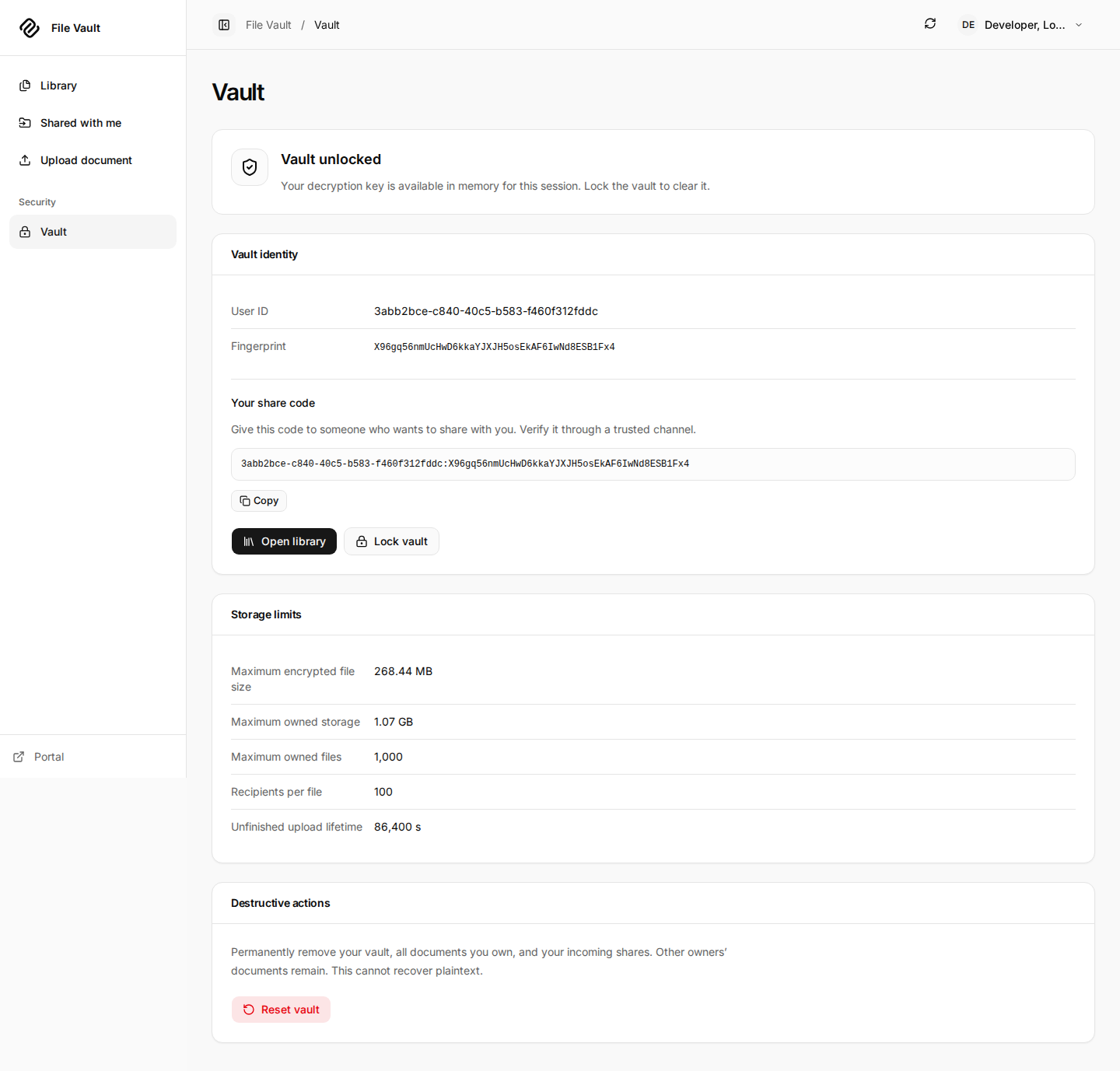
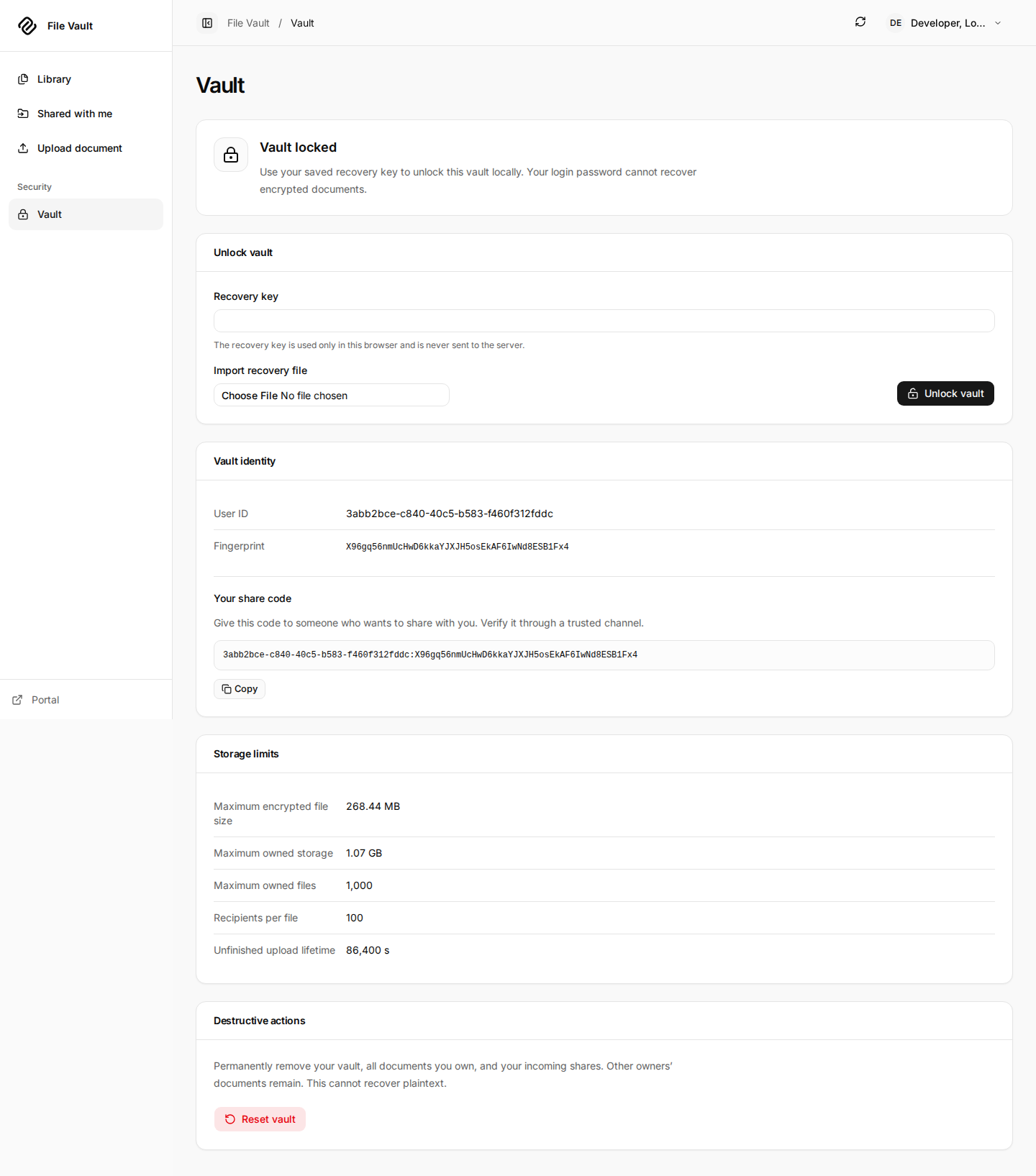
After enrollment, the Vault page shows your User ID, Fingerprint,
Your share code, and storage limits. The share code is public identity
information, suitable for giving a sender; it is distinct from the secret
recovery key. The app's compact format is User-ID:Fingerprint.
Unlocked identity and storage limits
3. Encrypt and upload a file
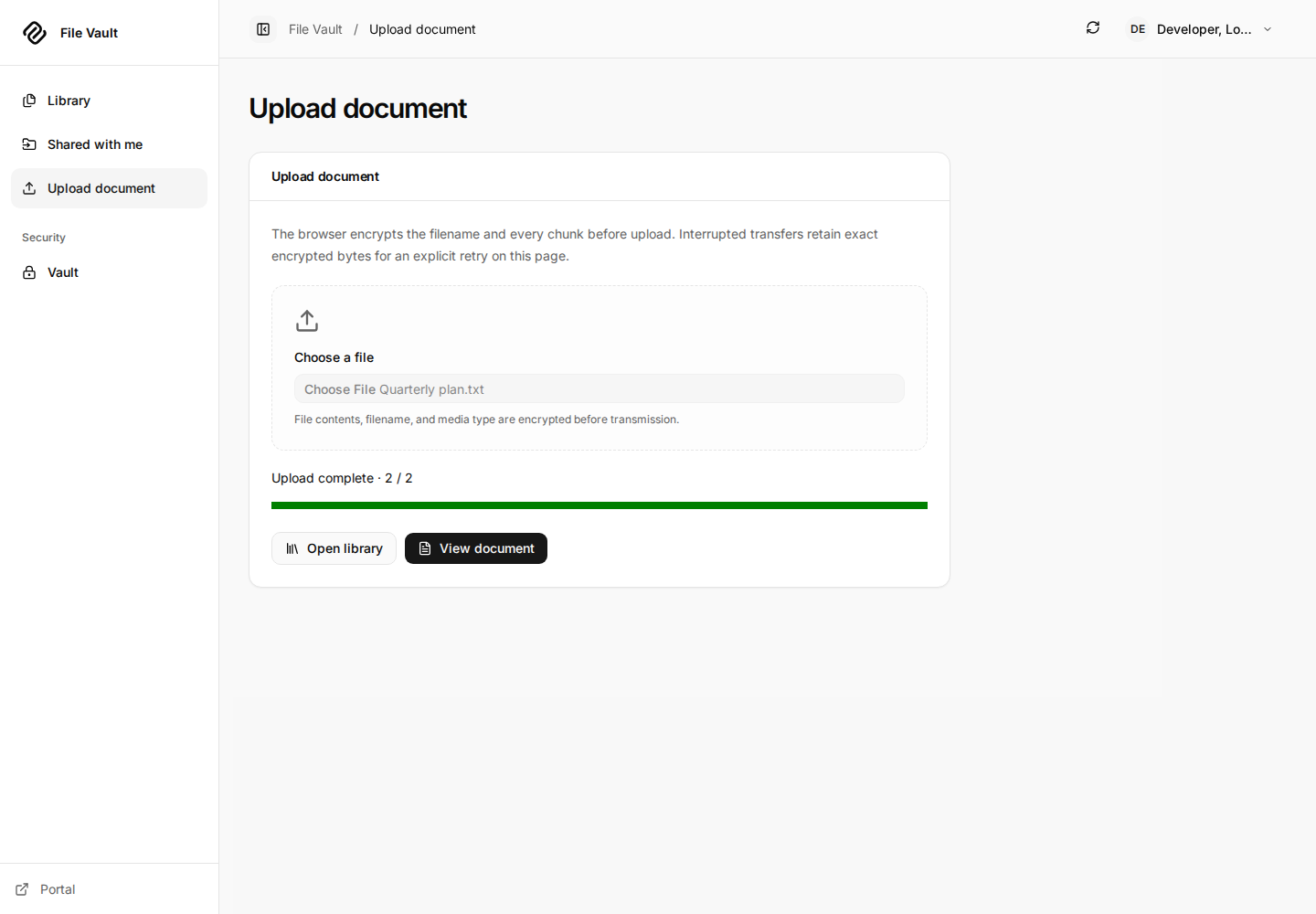
Open Upload document, select a local file and inspect its name and size. Choose Upload document to encrypt and transfer it. Wait for completion before closing the page. Use View document to inspect the finished file, or Open library to return to your collection.
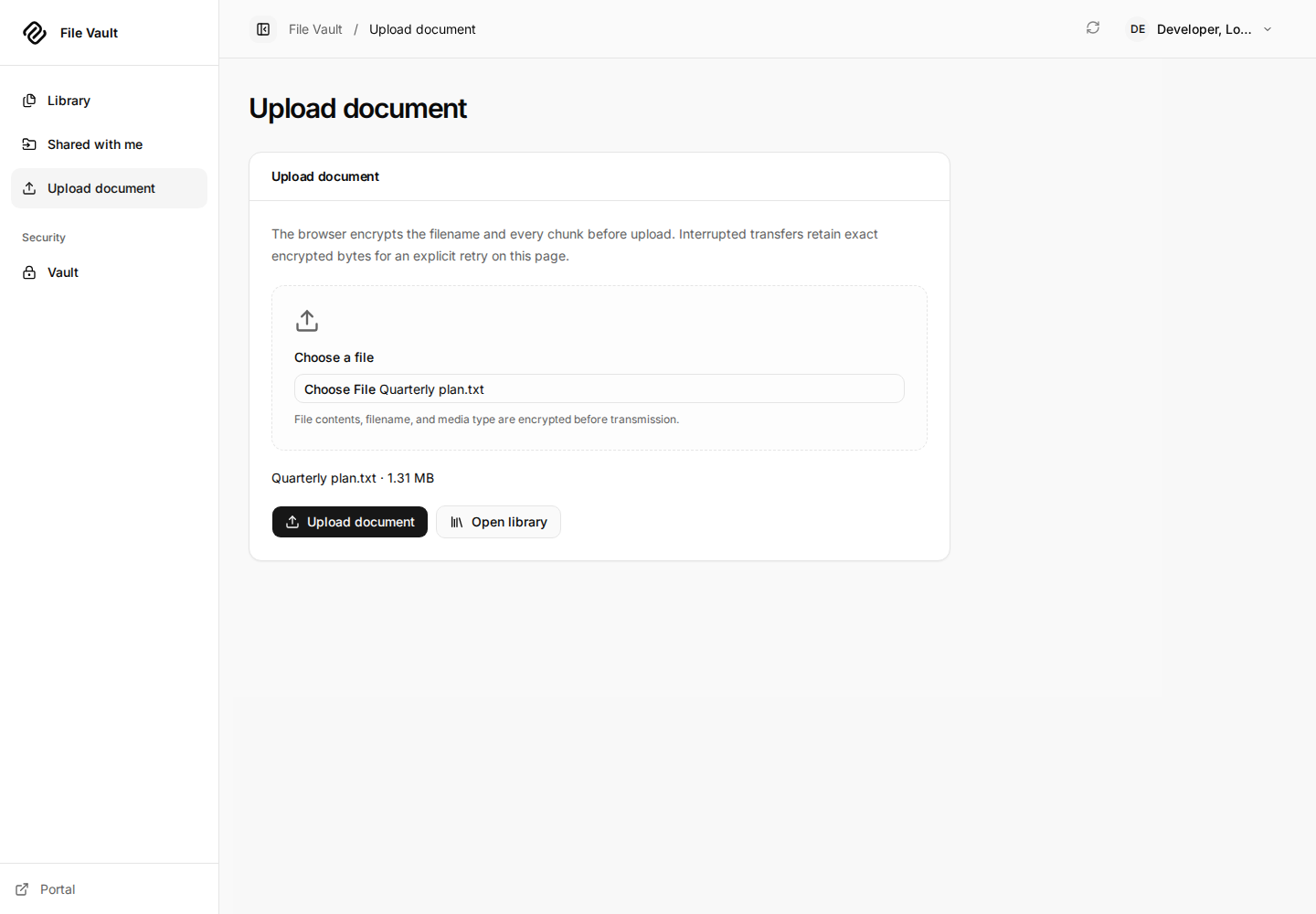
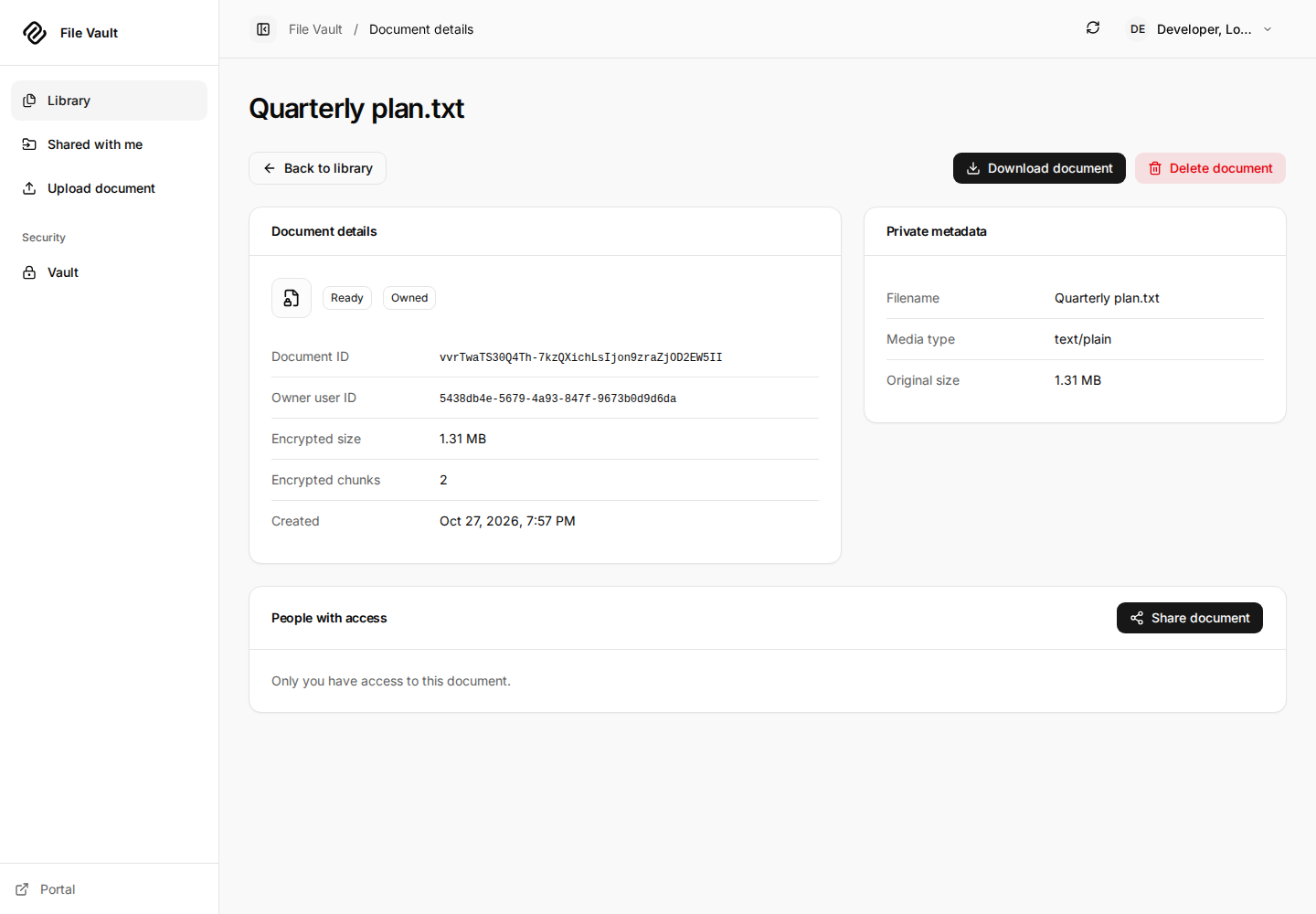
The browser encrypts the metadata and each chunk before sending it. The server first reserves space; it makes the upload ready after all chunks have arrived and the client commits it. A pending reservation is not a completed file. The demo's 1.31 MB input spans two plaintext chunks; encrypted storage includes authentication tags, so original size and encrypted size need not be equal.


Upload and download keep plaintext in the browser. An unlocked browser encrypts metadata and chunks, reserves storage, uploads ciphertext and commits the document. For download it fetches authorized ciphertext and authenticates every chunk before offering the decrypted file. A failed authentication check produces no completed download. The server still sees identities, sizes and sharing relationships.
Completed transfer and authenticated document details
If a transfer is interrupted, keep the original local file. Retry can resend the retained encrypted chunk state while that upload page is still available. After a lost allocation response or a reload, inspect Library for a pending reservation before starting over; the client cannot assume an uncertain allocation failed. Remove an unwanted pending entry or let the server's upload lifetime expire. Activity does not extend that lifetime.
Storage limits apply to encrypted bytes, including pending reservations. Read the limits shown on Vault; defaults include a 256 MiB encrypted file limit, 1 GiB owned storage and a 24-hour pending upload lifetime. The UI formats sizes for readability. A quota failure does not delete your local original.
4. Browse, search and download
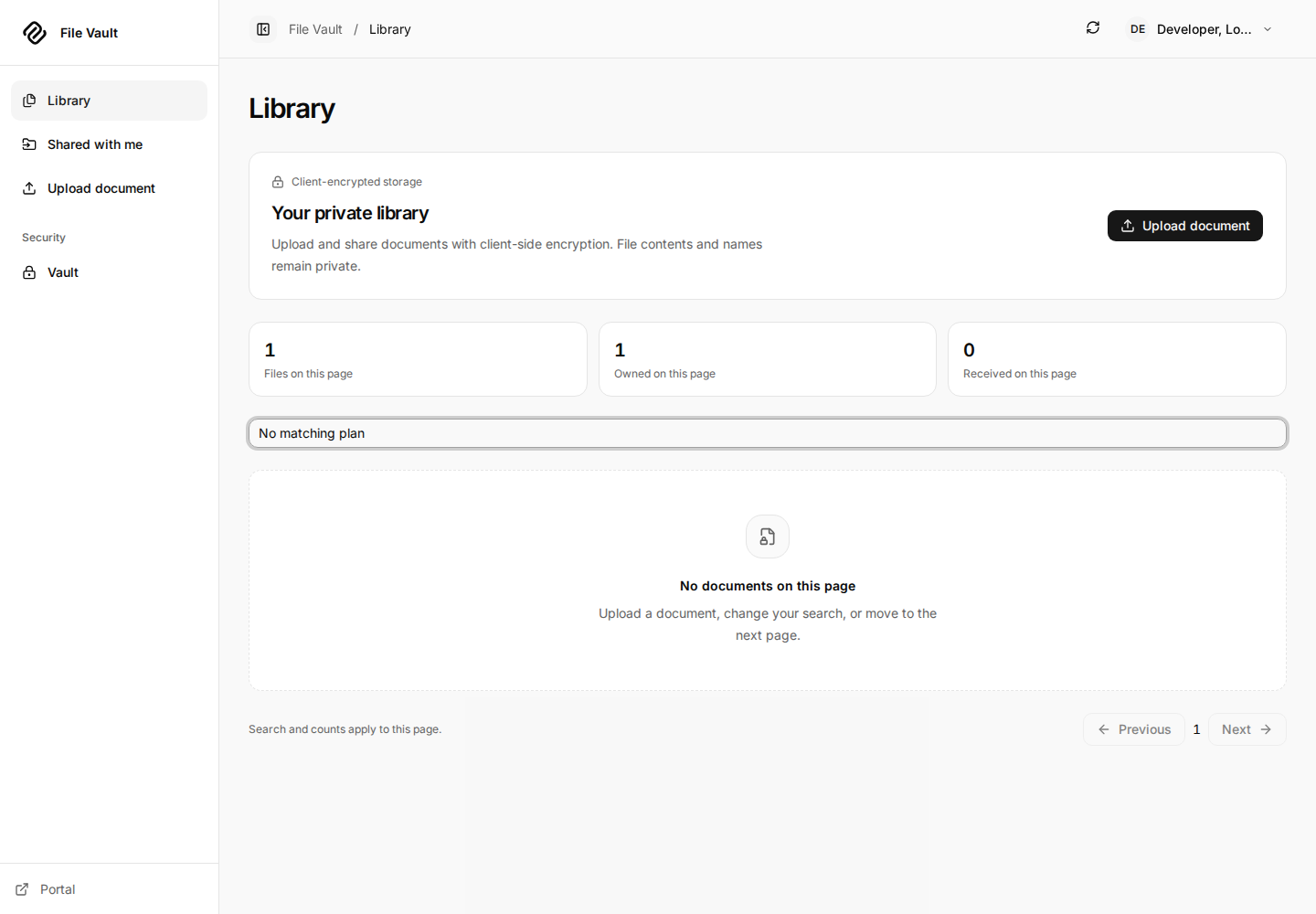
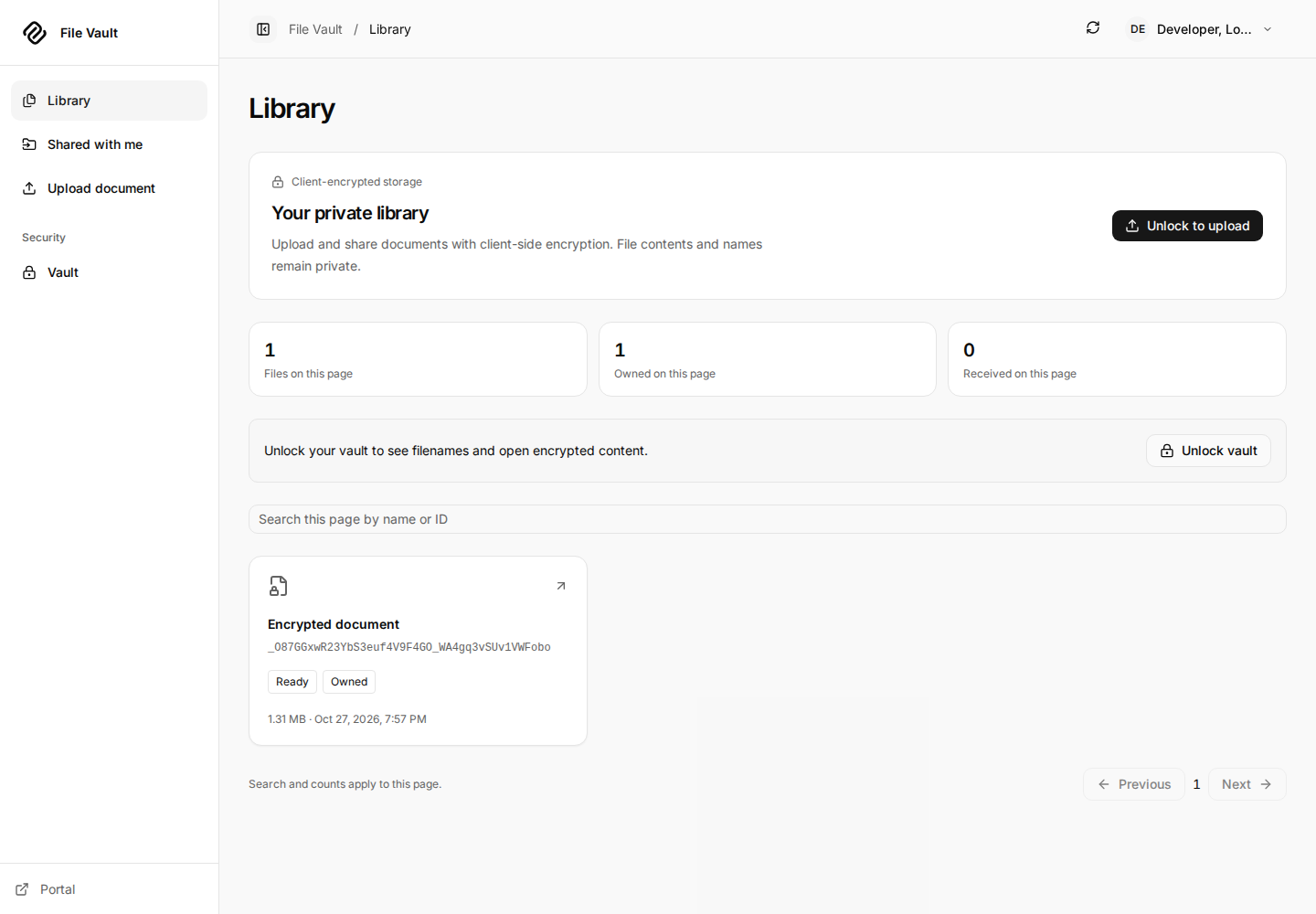
Library shows files available on the current page. Unlocking lets the browser retrieve and decrypt their names; locking or reloading replaces private filenames with encrypted-document placeholders. The search field and counts apply to the current page, not the entire server collection. Use Next and Previous for other pages; Shared with me filters received files within the current page of results.
An empty search result does not establish that the account has no documents. Clear the query, change the page, or upload a file. Open a ready document and choose Download document. The browser authenticates its metadata and every chunk before offering the decrypted download. Save it locally and, for a practice run, compare it with the original. The supplied demo verified the downloaded bytes against the source file.
Search with no match and Library after a reload
5. Verify a recipient and grant access
Use two distinct accounts in separate browser profiles/windows. In the local
setup Alice can own the file and Bob can receive it. The supplied demo instead
uses developer as owner and admin as recipient: the administrator receives
access through a normal grant, not an administrative override.
- The recipient signs in, enrolls their own vault, saves their own recovery key, and copies Your share code from Vault.
- Exchange that public code through an independently trusted channel. Confirm it belongs to the person and portal you intended.
- The owner unlocks their vault, opens the uploaded document and chooses Share document.
- Paste the recipient's code and choose Verify recipient. The app looks up the recipient's current public key and checks the full fingerprint.
- Compare the displayed identity/fingerprint with the independently obtained code. Select the verification acknowledgement, then Grant access.
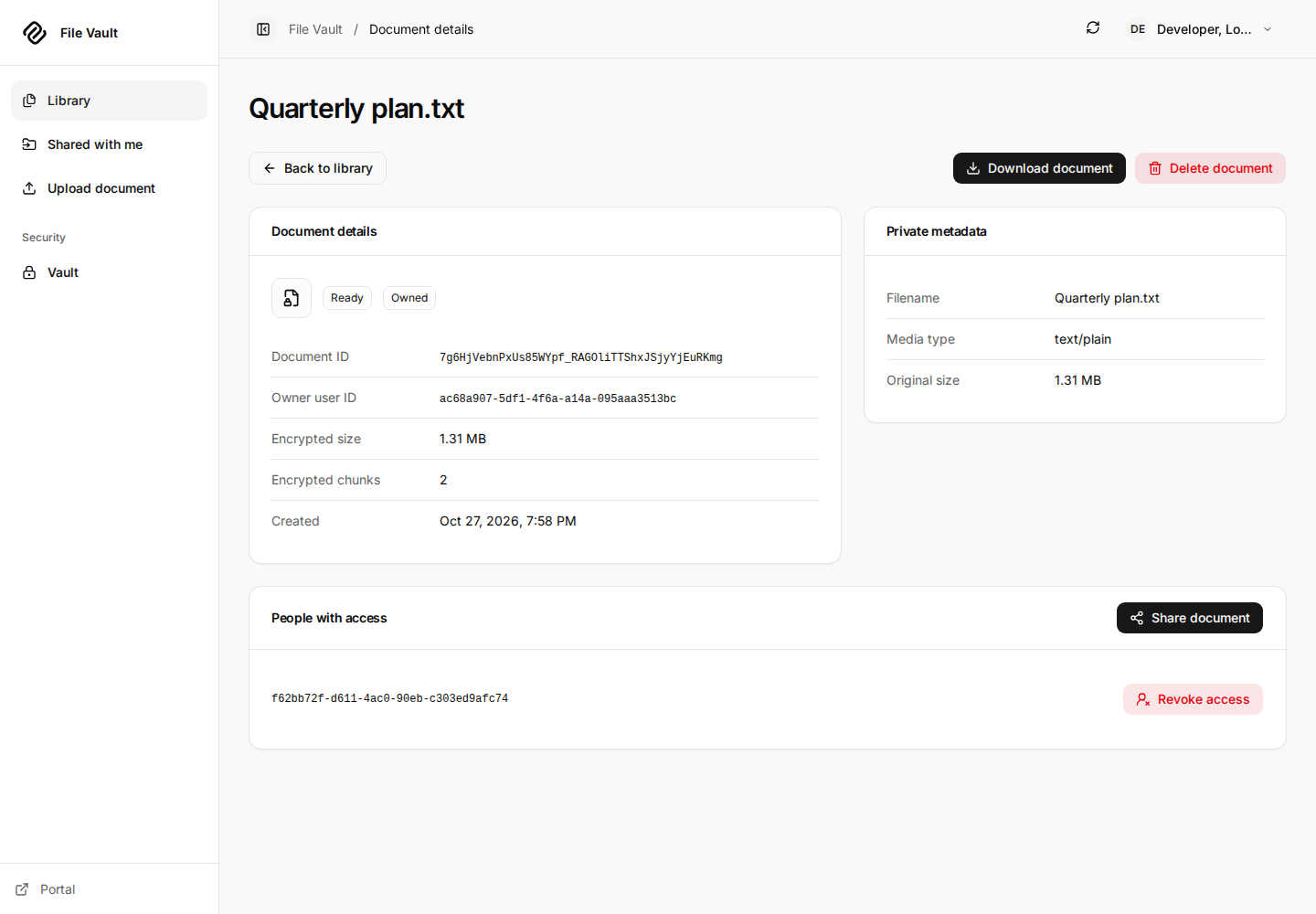
- Confirm the recipient appears under People with access.
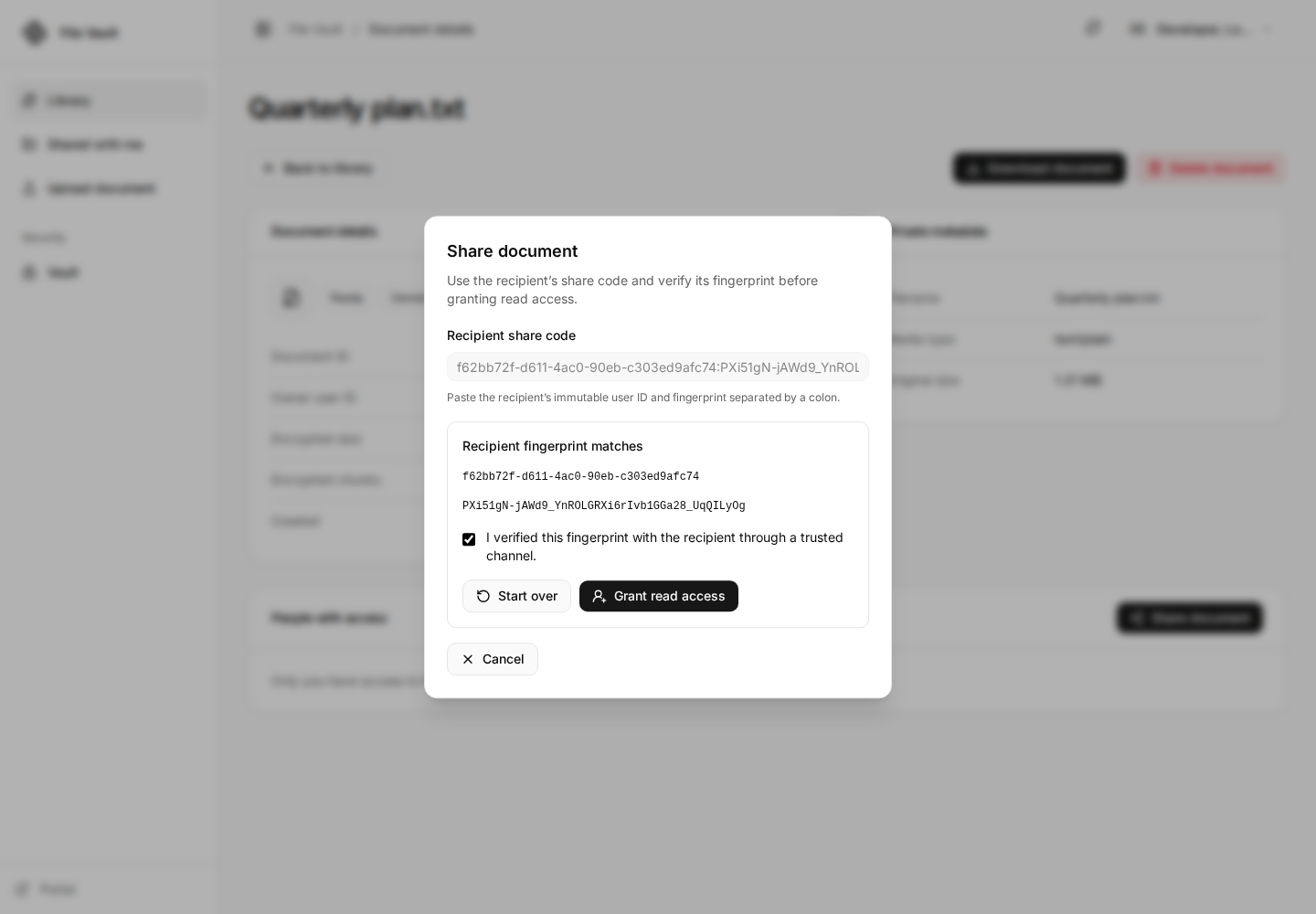
The browser wraps the document key for that recipient; it does not send them your recovery key or private key. A changed fingerprint requires a newly verified code. Sharing is account-bound; this app does not create public download links or search for recipients by email.
Owner's active sharing grant
6. Receive and download the shared file
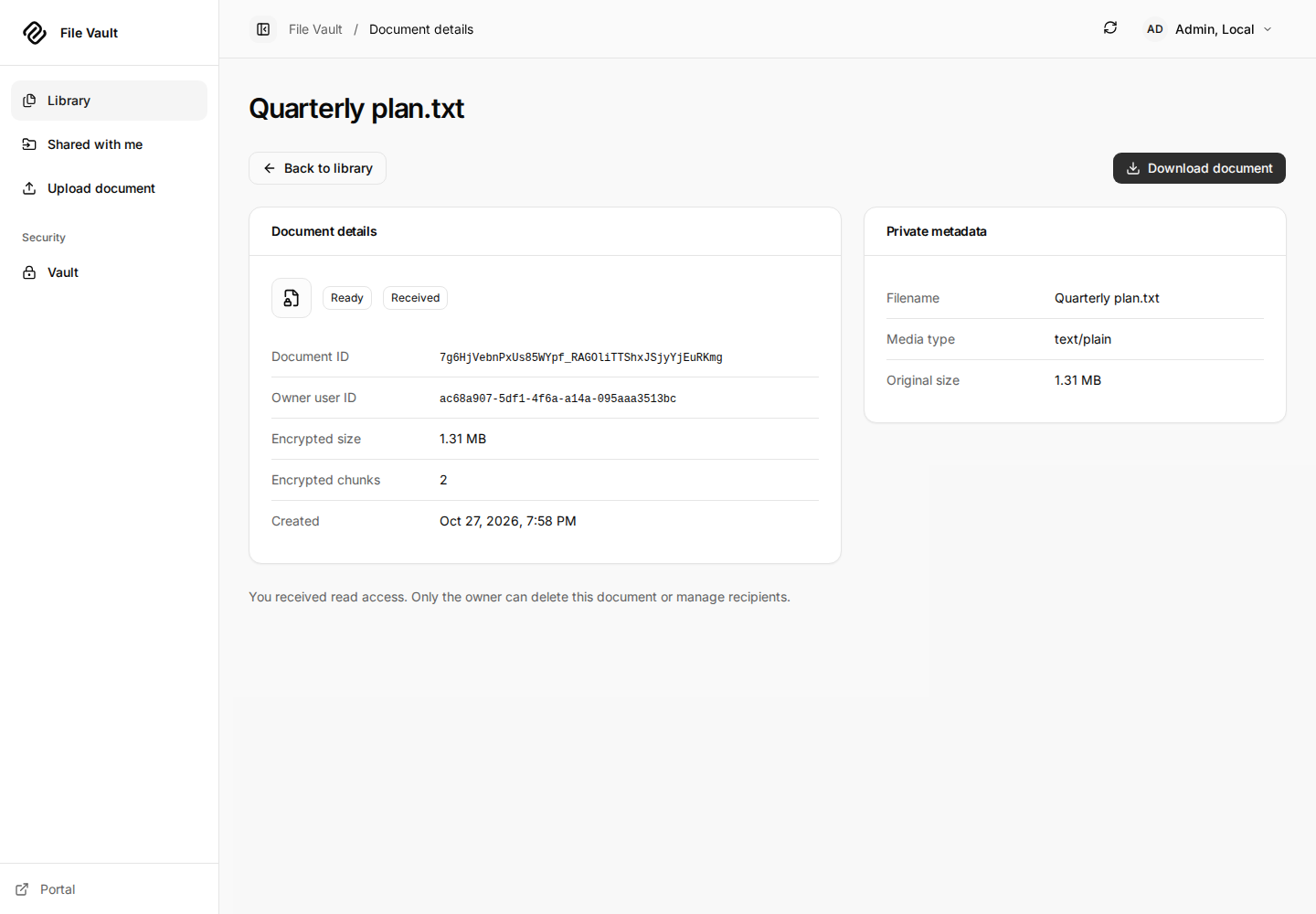
In the recipient's browser, unlock their own vault and open Shared with me. Open the received document and use Download document. The recipient decrypts with their own key; the file remains owned by the sender. Received-file details offer no owner sharing, revocation or deletion controls.
7. Revoke a grant and delete a document
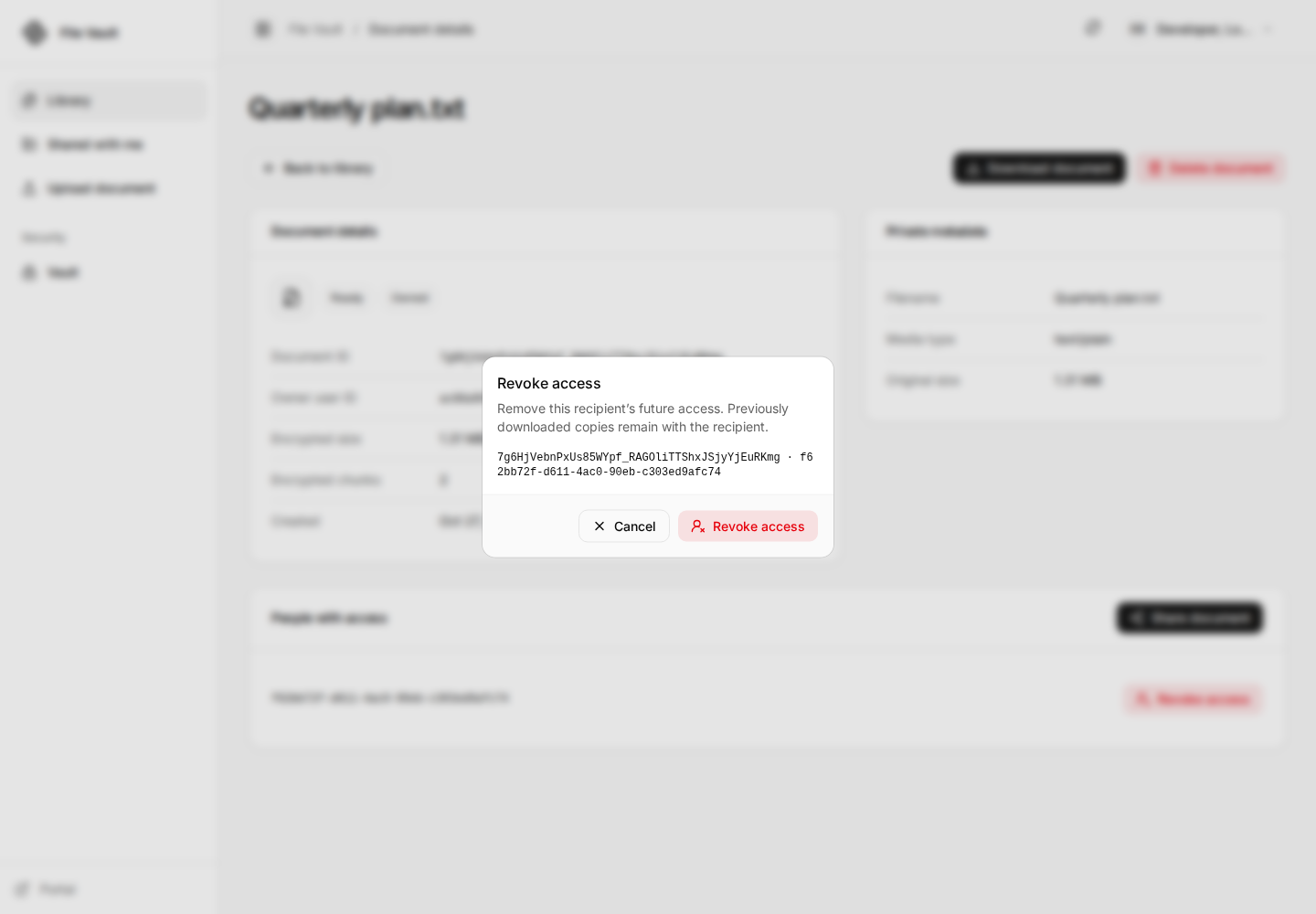
Back in the owner's browser, choose Revoke access for the recipient and confirm the dialog. Check that the grant disappears. Future server fetches for that recipient are denied. Revocation cannot erase plaintext or keys the recipient already downloaded or copied.
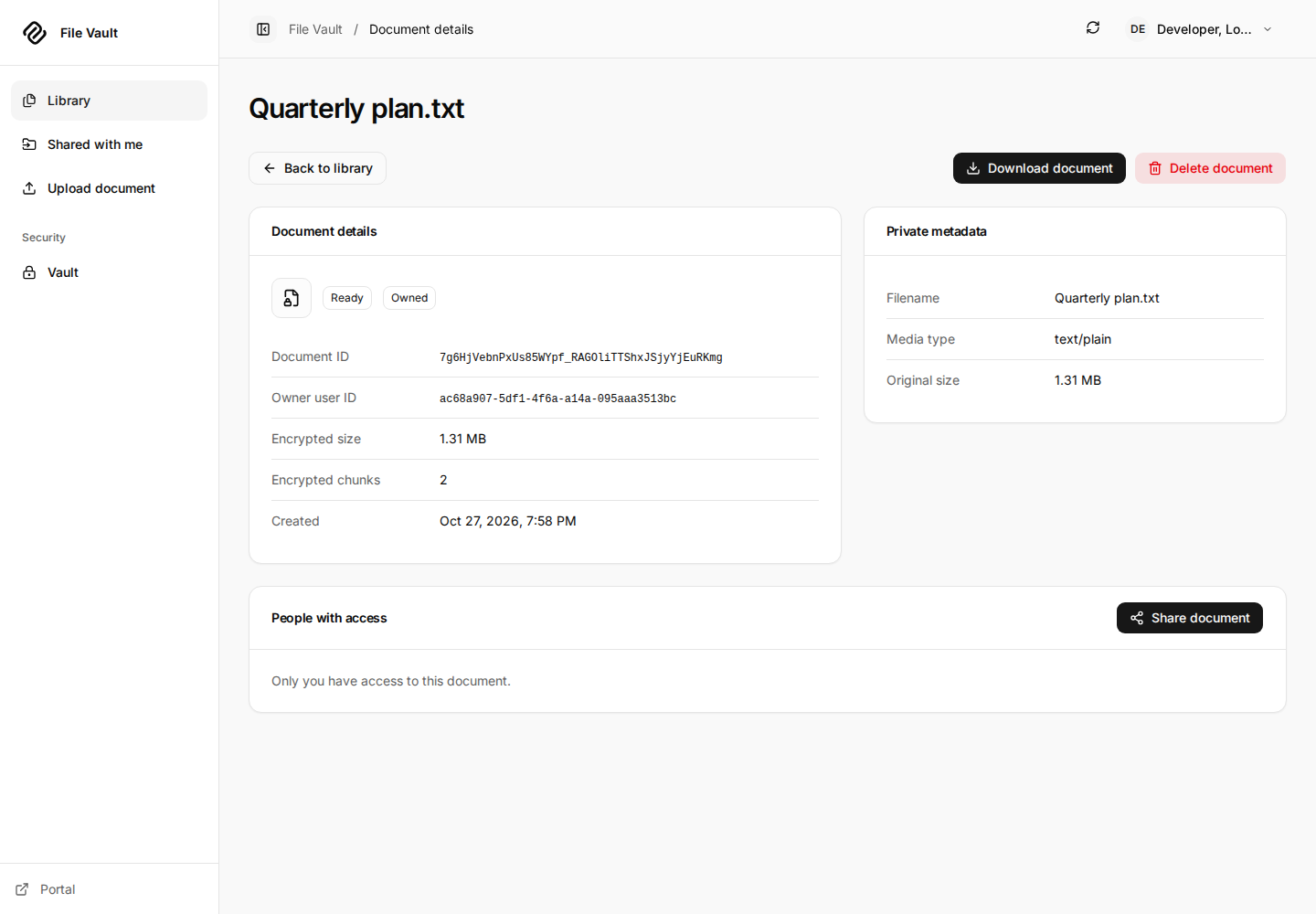
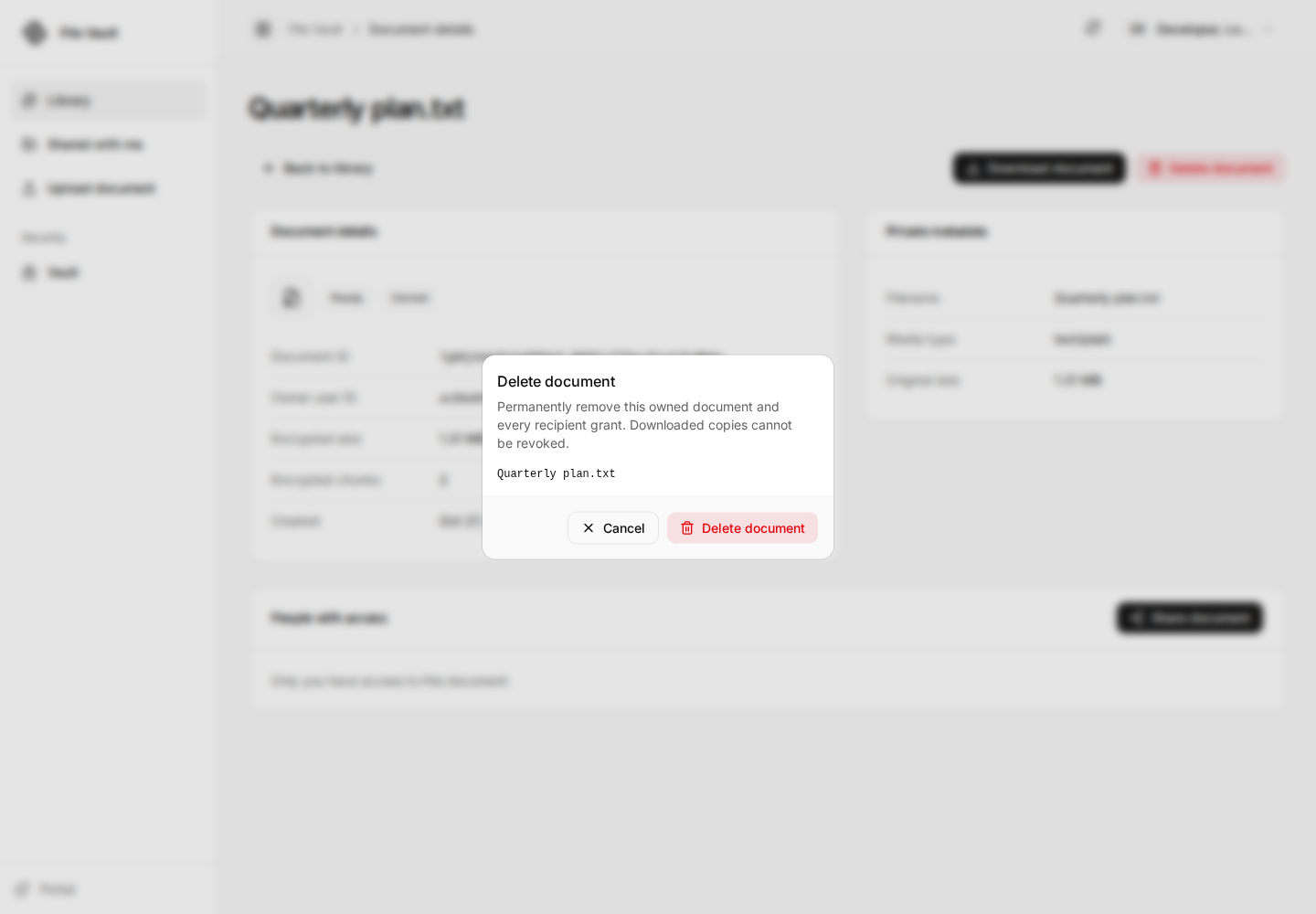
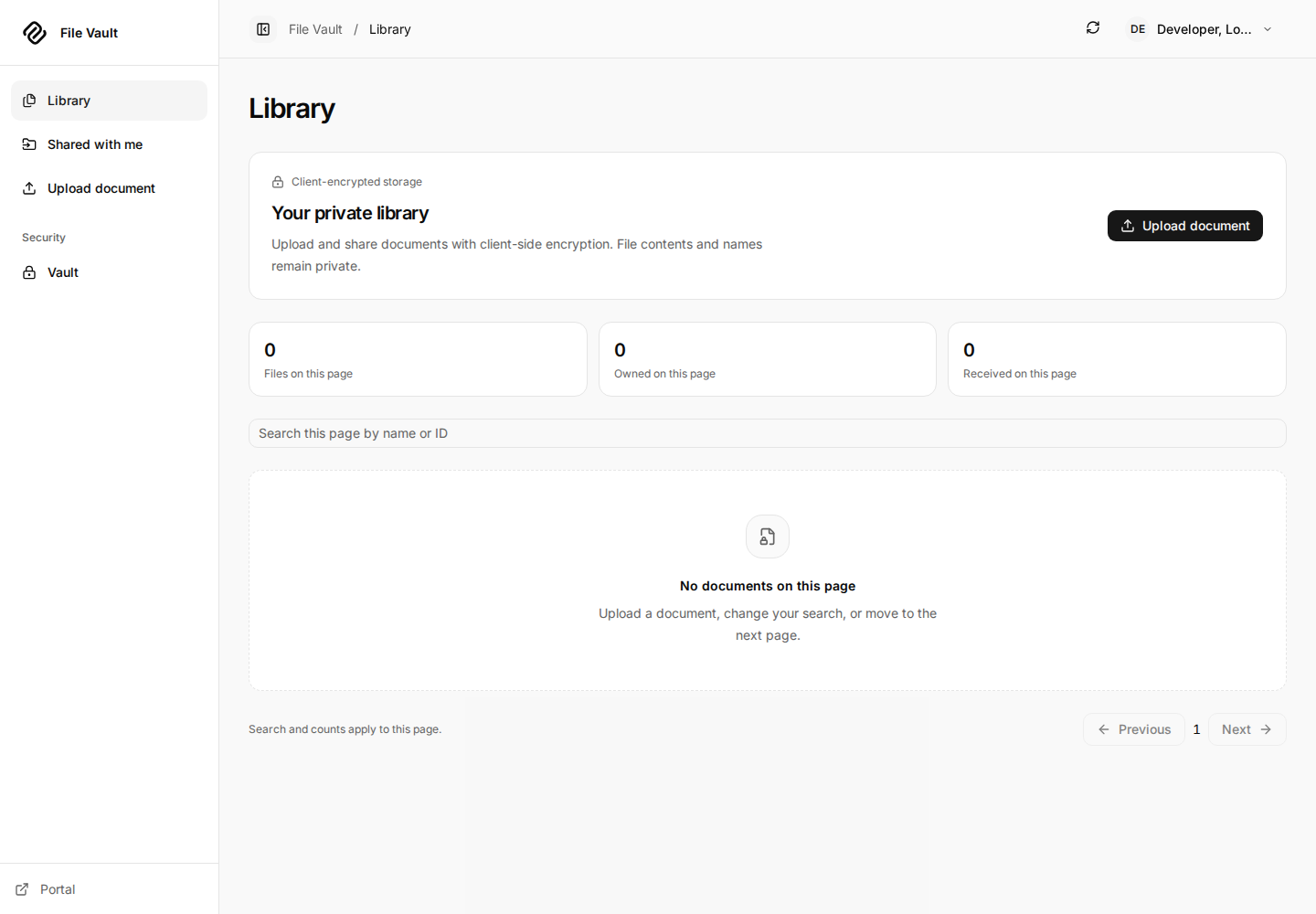
To remove the owned file itself, choose Delete document and confirm the specific target. The file leaves your library and is no longer available for future recipient fetches. Keep a local backup if you need it: server deletion does not provide an undo or restore workflow.
Revocation, deletion and their completed states
8. Lock, recover and reset
Choose Lock vault to drop this app's in-memory decryption access. This does not delete server files or end the portal login. A page reload or fresh app session also requires unlocking again. To recover access, open Vault, paste the saved recovery key or choose Import recovery file, then select Unlock vault. Import is local; the recovery secret is not uploaded. The file must match the portal, account and registered key fingerprint.
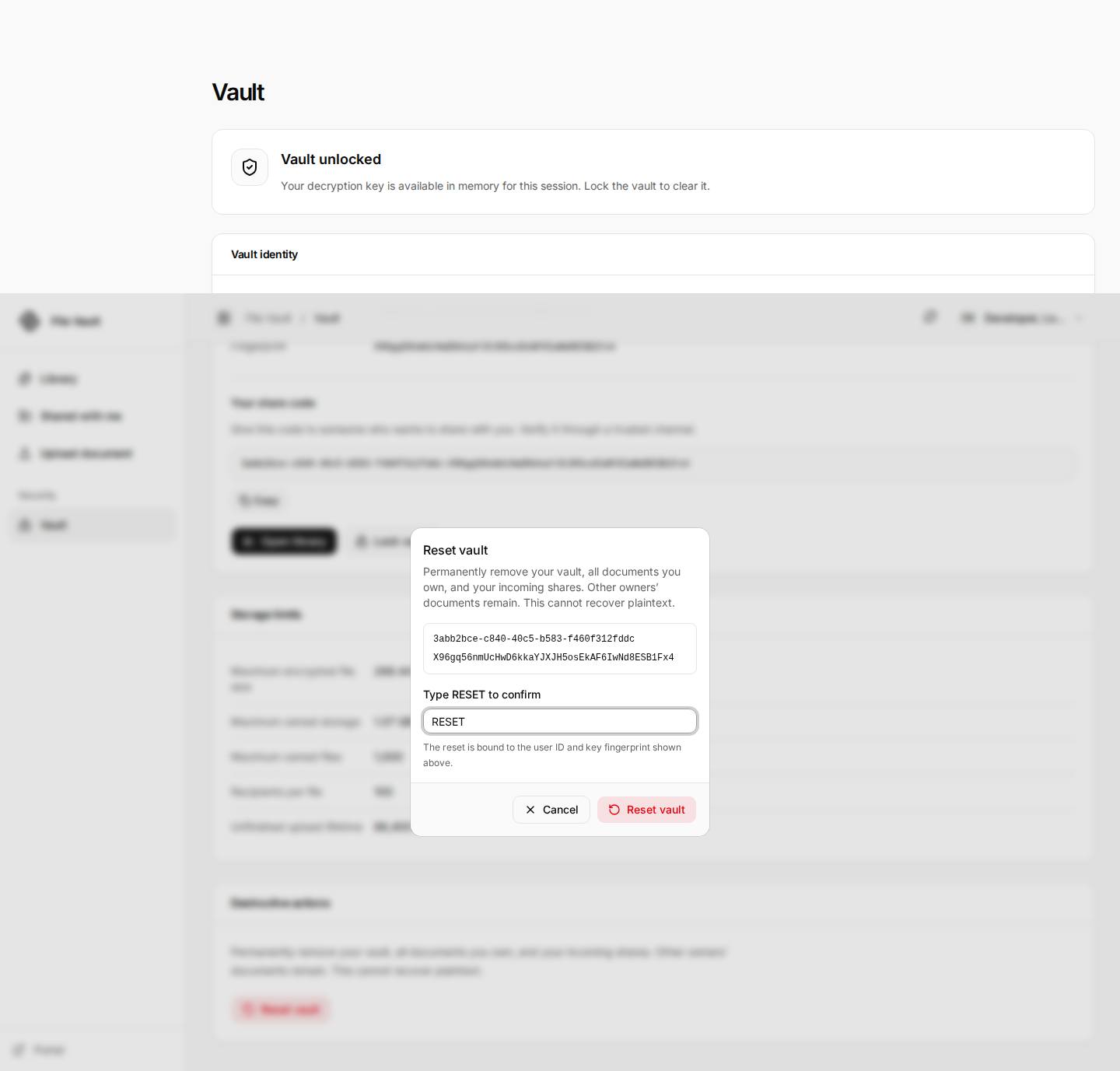
Reset vault is a destructive replacement, not password recovery or a key
backup. It permanently removes your old key registration, your owned documents
and your incoming grants. Other people's owned files remain theirs. The dialog
shows the account and fingerprint and requires the exact text RESET.
After completion you return to enrollment and need a new recovery key. Existing
senders must grant access again to your newly verified identity key.
Destructive reset and return to enrollment
Preferences, diagnostics and troubleshooting
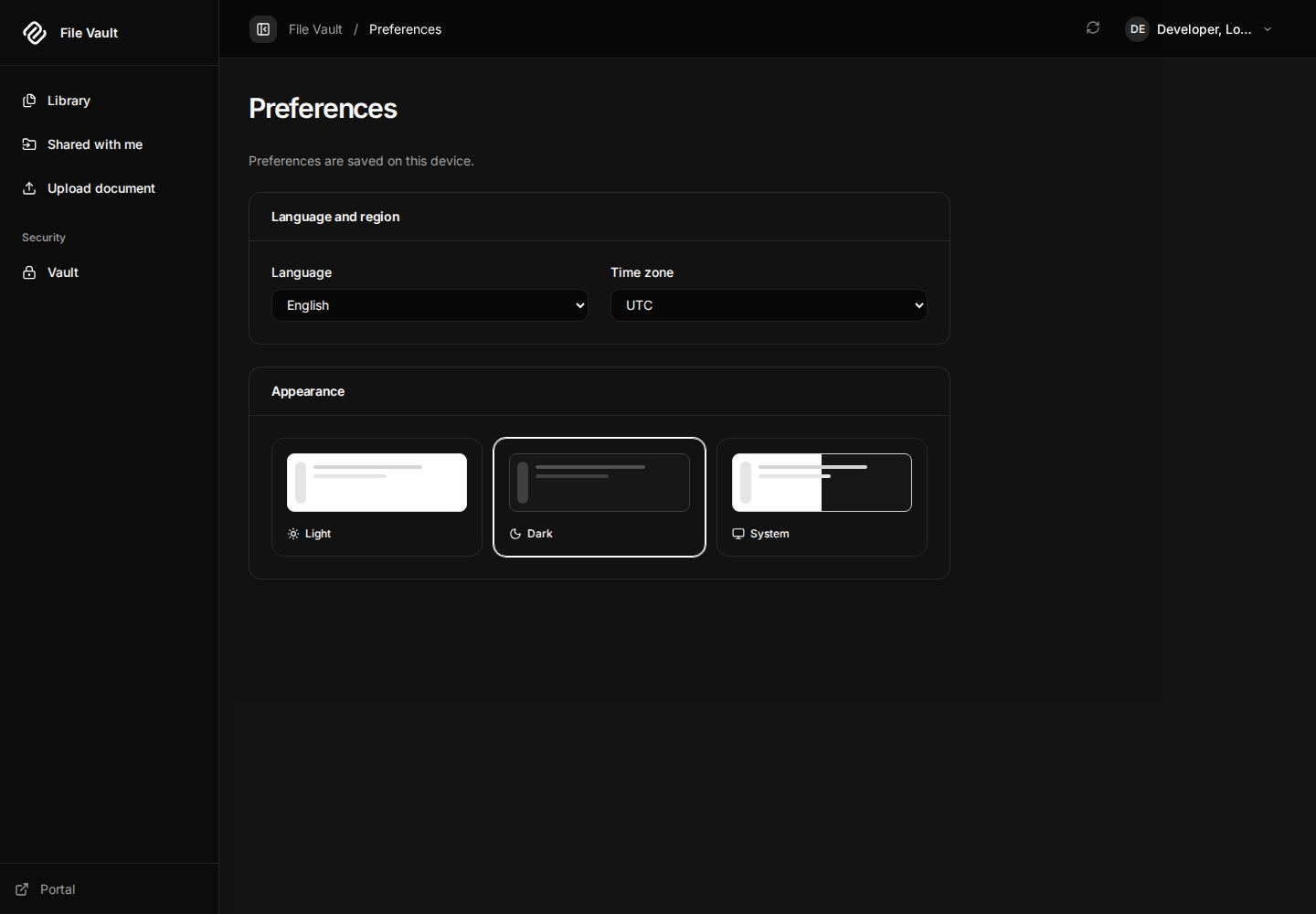
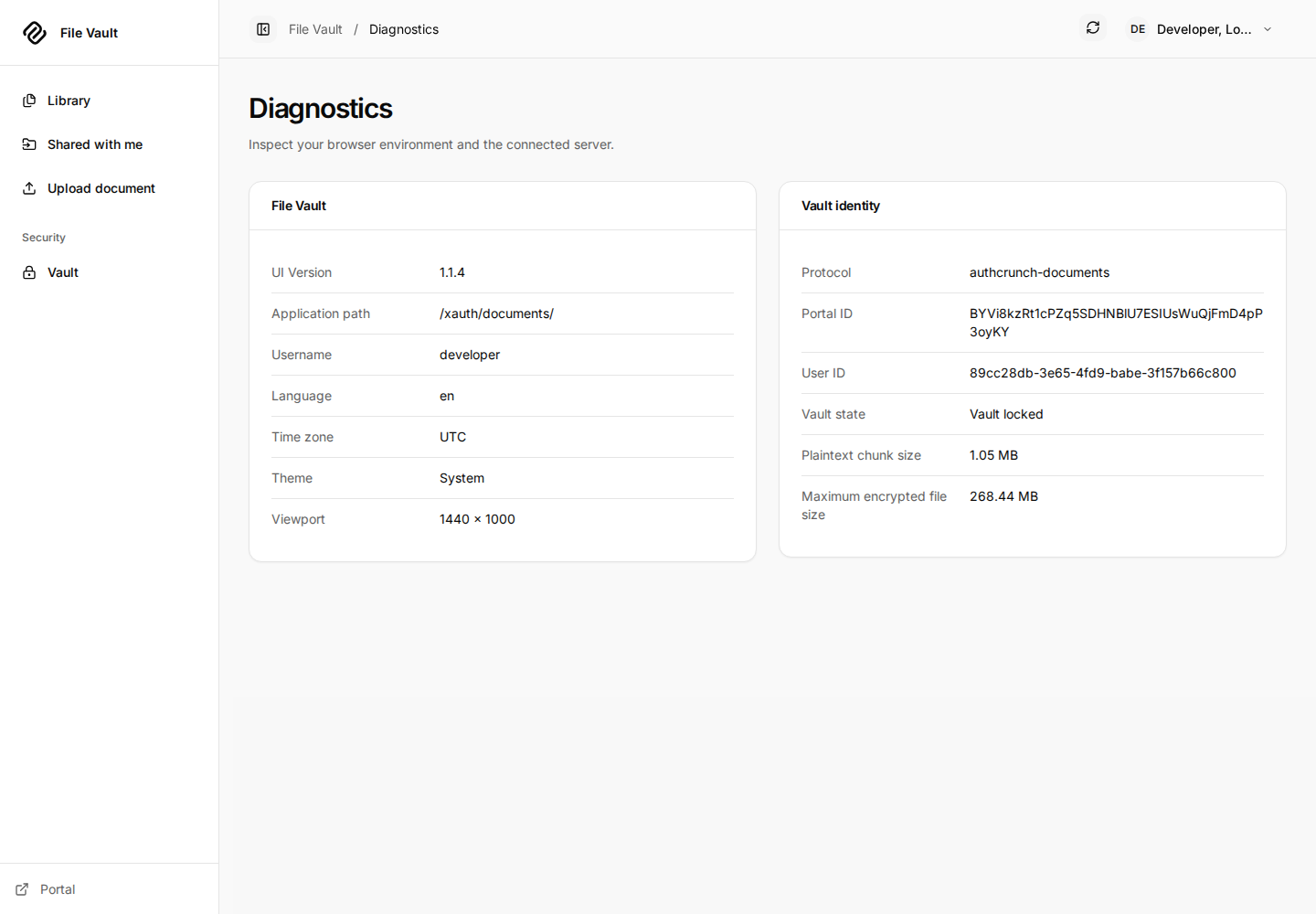
Choose Preferences from the avatar menu to set language, timezone and appearance for this device. Choose Diagnostics for UI version, app path, browser settings, protocol, portal/user IDs, vault state, chunk size and file limit. Share only the relevant nonsecret fields when asking for help.
Dark appearance, diagnostics and sign out
| Symptom | What to check |
|---|---|
| No File Vault portal link or unavailable app | Enabled and initialized Documents API, correct role, and the version actually running |
| App opens but API access is forbidden | Current local browser login, allowed realm, exact public HTTPS origin and base path; a standalone JWT or external login is insufficient |
| Filename becomes an encrypted placeholder | Unlock again; locking/reloading drops local key access |
| Recovery import fails | Correct recovery file for this portal, account and current fingerprint; resetting/enrolling creates a different key context |
| Recipient verification fails | Exact share code, current enrolled recipient key and independently checked fingerprint |
| Upload fails or quota is exhausted | Current limits, pending reservations, original local file and whether a prior uncertain upload was allocated |
| Download fails integrity checks | Stop and investigate ciphertext, account/key context or transfer errors; no completed plaintext download should be offered |
Encryption protects stored/transmitted content from passive inspection. It does not hide file sizes, timing, user IDs or sharing relationships, and does not protect against a compromised browser, modified served JavaScript, or a recipient who keeps a copy. See the Documents API guide for protocol, session authority, limits and operation paths.
Agentic Prompts
Use a prompt to explore this workflow against your deployed release.
Explain recovery and vault lifetimes
Primary authorities, before website documentation:
https://github.com/greenpau/caddy-security/blob/main/AGENTS.md
https://github.com/greenpau/caddy-security/tree/main/.codex/skills
https://github.com/greenpau/go-authcrunch/blob/main/AGENTS.md
https://github.com/greenpau/go-authcrunch/tree/main/.codex/skills
Read each root AGENTS.md first, then any scoped AGENTS.md applying to inspected
paths, then the relevant SKILL.md files and their implementation/test references.
Distinguish main, caddy-security v1.6.2 / go-authcrunch v1.5.0, the UI asset
version, and my deployed release. Resolve differences with code/tests. Keep
unverified behavior uncertain. Ask for pasted sources if they are inaccessible.
Use synthetic or redacted inputs; never request tokens or recovery secrets.
Relevant skills to locate: authentication-portal-documents; documents-app-integration; documents-implementation.
Secondary context: https://docs.authcrunch.com/docs/apps/file-vault

Teach back enrollment, backup acknowledgement, encrypted registration, local unlock, reload, lock and fresh browser login. Compare recovery key, portal password, public fingerprint and share code. Explain precisely what reset deletes.
Trace an interrupted encrypted upload
Primary authorities, before website documentation:
https://github.com/greenpau/caddy-security/blob/main/AGENTS.md
https://github.com/greenpau/caddy-security/tree/main/.codex/skills
https://github.com/greenpau/go-authcrunch/blob/main/AGENTS.md
https://github.com/greenpau/go-authcrunch/tree/main/.codex/skills
Read each root AGENTS.md first, then any scoped AGENTS.md applying to inspected
paths, then the relevant SKILL.md files and their implementation/test references.
Distinguish main, caddy-security v1.6.2 / go-authcrunch v1.5.0, the UI asset
version, and my deployed release. Resolve differences with code/tests. Keep
unverified behavior uncertain. Ask for pasted sources if they are inaccessible.
Use synthetic or redacted inputs; never request tokens or recovery secrets.
Relevant skills to locate: authentication-portal-documents; documents-app-integration; documents-implementation.
Secondary context: https://docs.authcrunch.com/docs/apps/file-vault

Trace allocation, encrypted metadata/chunks, commit and authenticated download for a two-chunk synthetic file. Analyze ambiguous allocation, exact-ciphertext retry, pending quota and expiry, reload and integrity failure.
Verify a recipient safely
Primary authorities, before website documentation:
https://github.com/greenpau/caddy-security/blob/main/AGENTS.md
https://github.com/greenpau/caddy-security/tree/main/.codex/skills
https://github.com/greenpau/go-authcrunch/blob/main/AGENTS.md
https://github.com/greenpau/go-authcrunch/tree/main/.codex/skills
Read each root AGENTS.md first, then any scoped AGENTS.md applying to inspected
paths, then the relevant SKILL.md files and their implementation/test references.
Distinguish main, caddy-security v1.6.2 / go-authcrunch v1.5.0, the UI asset
version, and my deployed release. Resolve differences with code/tests. Keep
unverified behavior uncertain. Ask for pasted sources if they are inaccessible.
Use synthetic or redacted inputs; never request tokens or recovery secrets.
Relevant skills to locate: authentication-portal-documents; documents-app-integration; documents-implementation.
Secondary context: https://docs.authcrunch.com/docs/apps/file-vault

Walk through two users with independent vaults and a public User-ID:Fingerprint code. Explain independent identity verification, key lookup, wrapping and grant confirmation. Distinguish this UI format from lower-level protocol examples.
Reason about revocation and ownership
Primary authorities, before website documentation:
https://github.com/greenpau/caddy-security/blob/main/AGENTS.md
https://github.com/greenpau/caddy-security/tree/main/.codex/skills
https://github.com/greenpau/go-authcrunch/blob/main/AGENTS.md
https://github.com/greenpau/go-authcrunch/tree/main/.codex/skills
Read each root AGENTS.md first, then any scoped AGENTS.md applying to inspected
paths, then the relevant SKILL.md files and their implementation/test references.
Distinguish main, caddy-security v1.6.2 / go-authcrunch v1.5.0, the UI asset
version, and my deployed release. Resolve differences with code/tests. Keep
unverified behavior uncertain. Ask for pasted sources if they are inaccessible.
Use synthetic or redacted inputs; never request tokens or recovery secrets.
Relevant skills to locate: authentication-portal-documents; documents-app-integration; documents-implementation.
Secondary context: https://docs.authcrunch.com/docs/apps/file-vault

Compare a recipient, an unrelated administrator and the owner. Explain allowed operations, incoming grants, revocation, deletion and already-downloaded plaintext. Analyze recipient reset and changed fingerprints.
Diagnose a locked or unavailable library
Primary authorities, before website documentation:
https://github.com/greenpau/caddy-security/blob/main/AGENTS.md
https://github.com/greenpau/caddy-security/tree/main/.codex/skills
https://github.com/greenpau/go-authcrunch/blob/main/AGENTS.md
https://github.com/greenpau/go-authcrunch/tree/main/.codex/skills
Read each root AGENTS.md first, then any scoped AGENTS.md applying to inspected
paths, then the relevant SKILL.md files and their implementation/test references.
Distinguish main, caddy-security v1.6.2 / go-authcrunch v1.5.0, the UI asset
version, and my deployed release. Resolve differences with code/tests. Keep
unverified behavior uncertain. Ask for pasted sources if they are inaccessible.
Use synthetic or redacted inputs; never request tokens or recovery secrets.
Relevant skills to locate: authentication-portal-documents; documents-app-integration; documents-implementation.
Secondary context: https://docs.authcrunch.com/docs/apps/file-vault

Analyze missing feature links, failed bootstrap, forbidden origin/realm, locked filenames, current-page search and invalid recovery import. Explain which evidence calls for fresh login, unlocking or server configuration repair without suggesting a destructive reset as a generic fix.
Source Code References
- Search the upstream implementations.
- caddyfile_authn_documents.go (caddy-security v1.6.2): Enablement and storage configuration.
- documents_http.go (go-authcrunch v1.5.0): Session authority and operation admission.
- Documents store.go (v1.5.0): Ownership, storage and destructive reset.
- Browser crypto helper (v1.5.0): Encryption, recovery and key envelopes.
- Embedded applications browser tests (go-authcrunch v1.5.0): Bundled app rendering and mount-aware browser checks.