Portal API
Use this API to complete a local login or inspect a portal access token. Login is a stateful sequence: knowing the username or receiving a challenge does not authenticate a user. For an ordinary browser integration, prefer the portal's built-in login and Profile UI.
Request Requirements
Request JSON with Accept: application/json or format=json. A JSON
Content-Type alone does not select a JSON response for these routes.
export AUTH_PORTAL_BASE_URL=https://auth.example.com/auth
Use HTTPS. Browser-origin headers on unsafe requests must match the portal's public origin. Keep cookies or bearer credentials private. The examples below show JSON bodies so secrets do not need to be pasted into a shell history.


JSON login advances one bound checkpoint at a time. The initial identity request creates temporary sandbox state. Each successful continuation returns the current sandbox secret and next challenge; previous secrets must not be replayed. Only authenticated true signals completion. Browser cookie delivery and explicitly enabled native body-refresh delivery remain different transports.
User Login API
POST /auth/login supports the local challenge sequence. OAuth and SAML
login involve provider redirects and callbacks; this is not a password grant
against every external identity provider.
Initial Login Request
{"username":"alice","realm":"local"}
The response identifies a temporary login sandbox:
{
  "sandbox_id":"opaque-login-id",
  "sandbox_secret":"opaque-current-secret",
  "next_challenge":"password"
}
Select the configured realm and retain these values privately. The sandbox expires 300 seconds after creation. Send one response at a time; its secret rotates as the sequence advances. Never replay the secret from an earlier step. An explicit unsatisfiable challenge policy denies login. See challenge selection for ordered alternatives.
Password Challenge
{
  "username":"alice",
  "realm":"local",
  "sandbox_id":"opaque-login-id",
  "sandbox_secret":"opaque-current-secret",
  "challenge_kind":"password",
  "challenge_response":"replace-with-the-account-password"
}
Use the returned sandbox fields and next_challenge to continue. A successful
password checkpoint may lead to another factor; it is not permission to assume
that the login is complete. Failed password and MFA attempts have separate
lockout behavior.
MFA Application Passcode Challenge
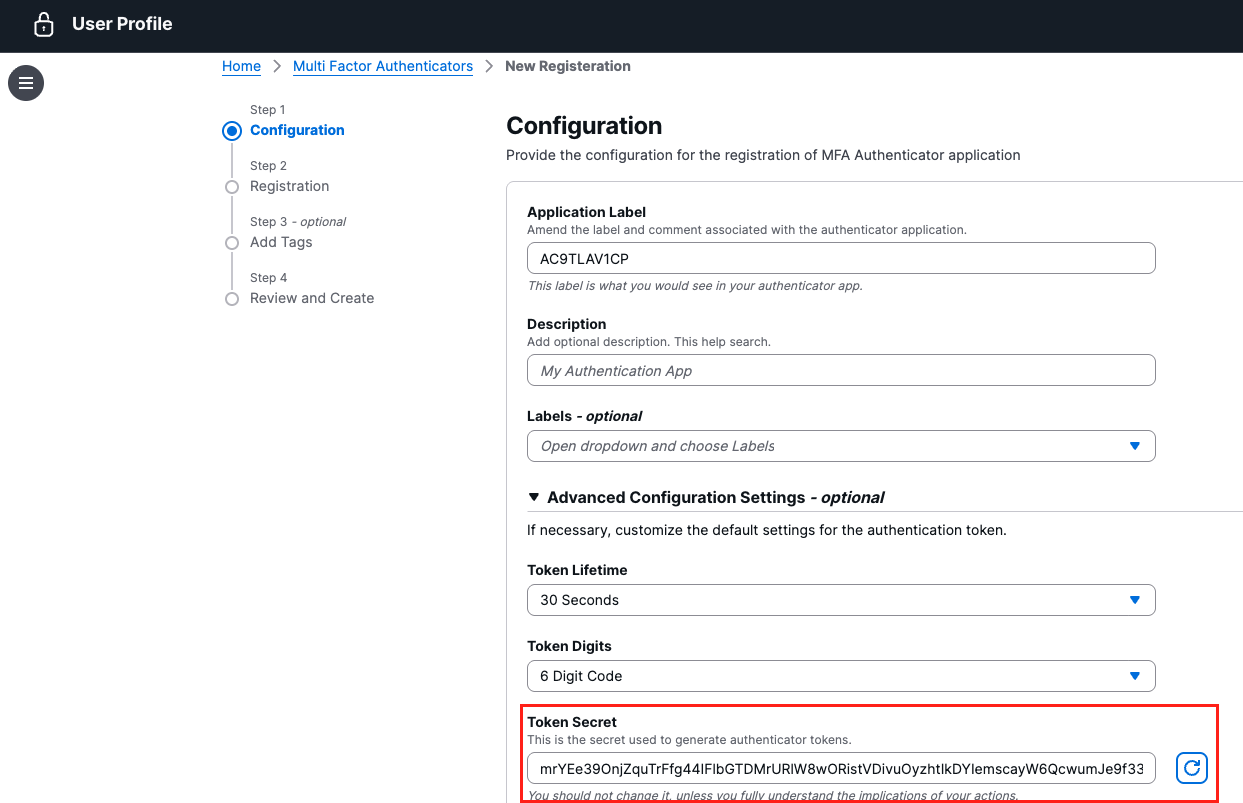
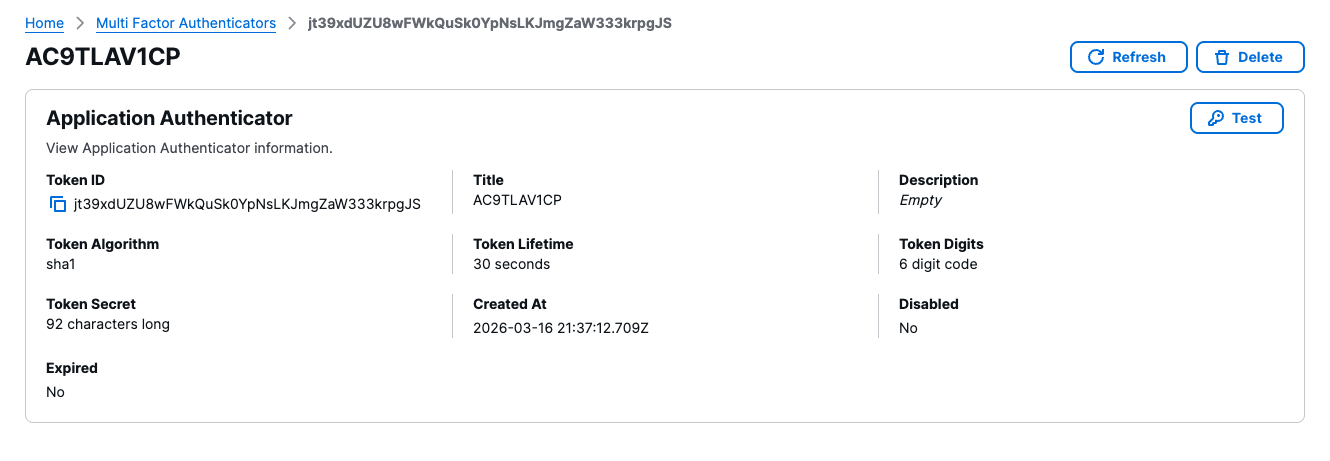
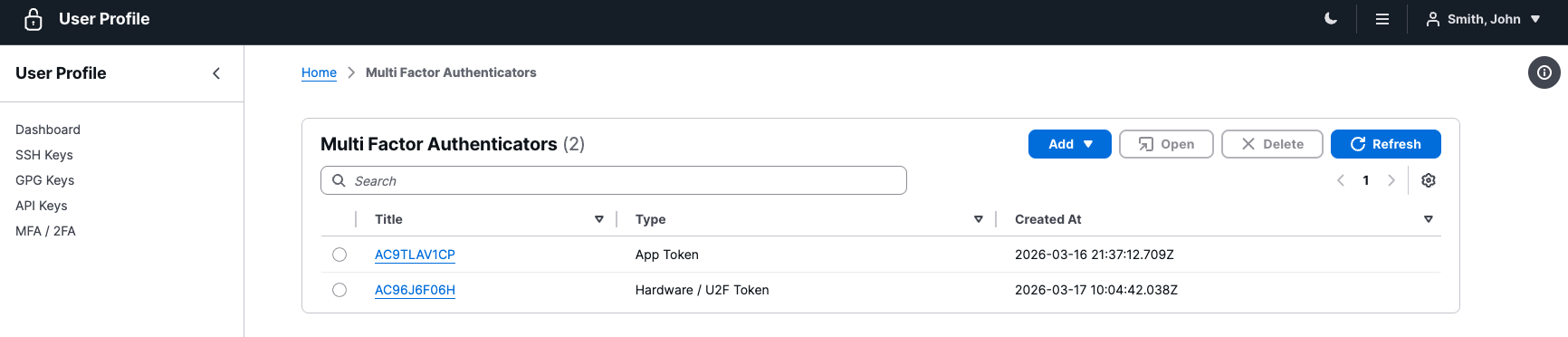
Enroll an authenticator in /auth/profile/ before requiring it for login.
Scan the enrollment QR code in a private authenticator app and verify a code.
The following preserved Profile screens illustrate enrollment, not an API
that distributes a user's factor secret to another application.
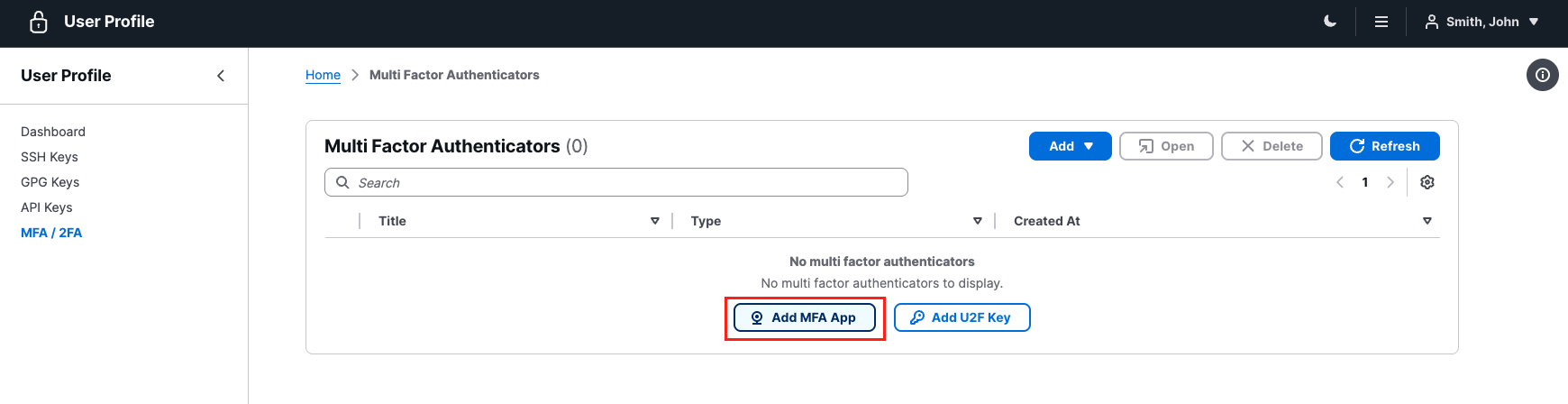
Application authenticator enrollment screens

When next_challenge is totp, send the current authenticator code and the
latest sandbox secret:
{
  "username":"alice",
  "realm":"local",
  "sandbox_id":"opaque-login-id",
  "sandbox_secret":"latest-secret-from-password-response",
  "challenge_kind":"totp",
  "challenge_response":"current-code-from-authenticator"
}
A generic mfa checkpoint can accept a numeric authenticator code or begin
WebAuthn. An explicitly selected totp checkpoint does not allow the client to
substitute another method. Enrollment changes can require a fresh login.
WebAuthn/U2F Challenge
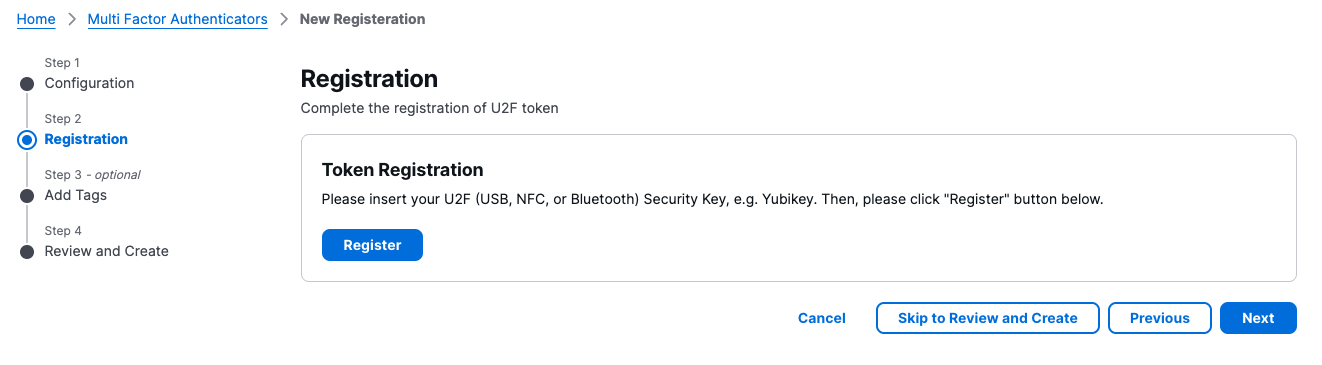
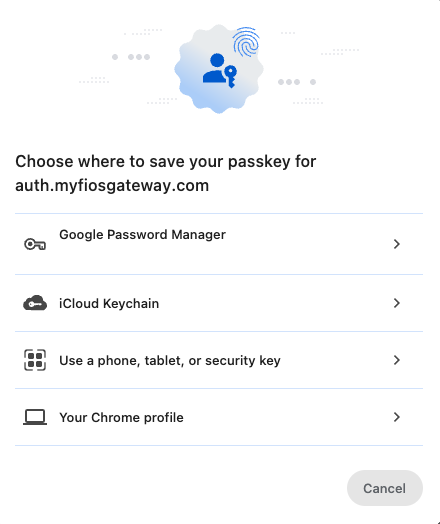
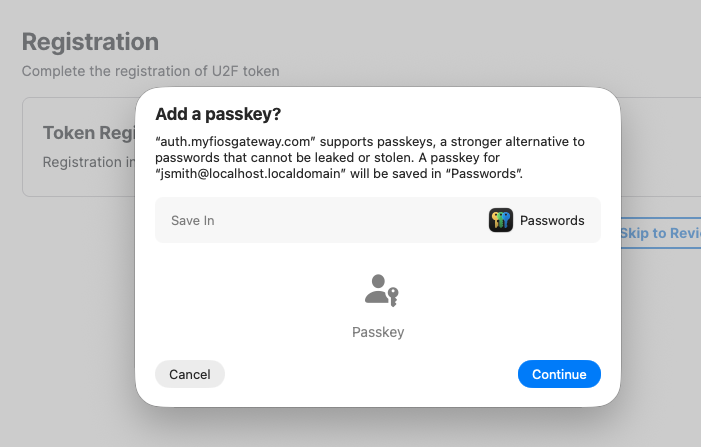
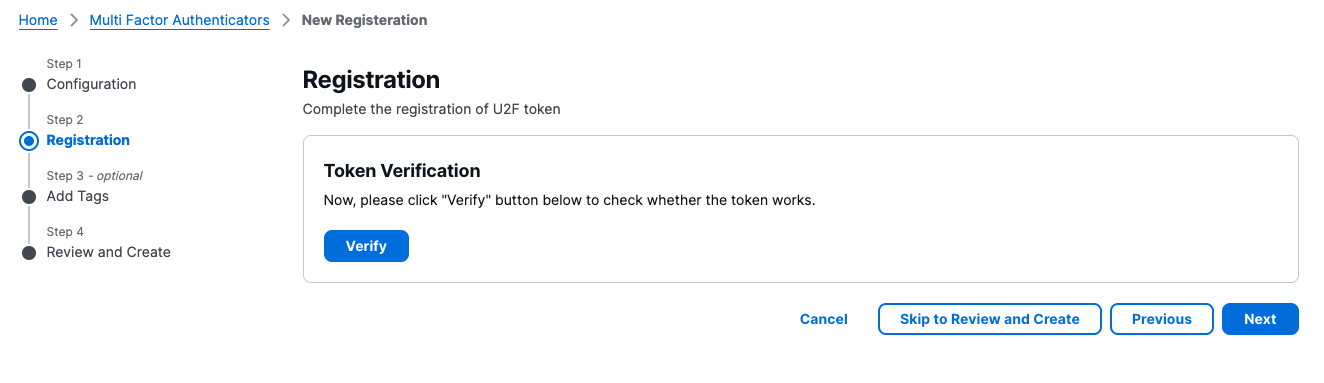
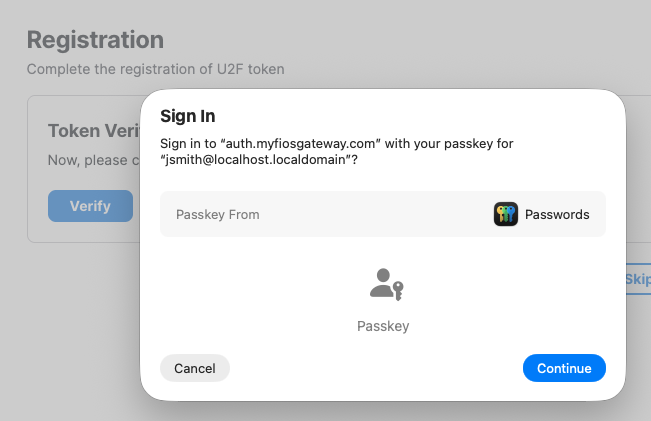
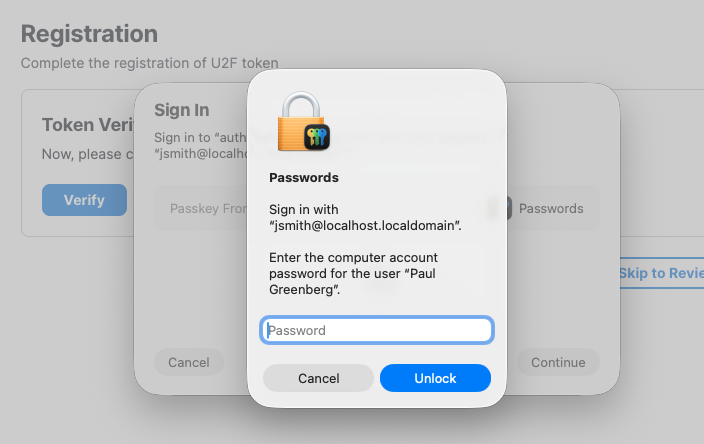
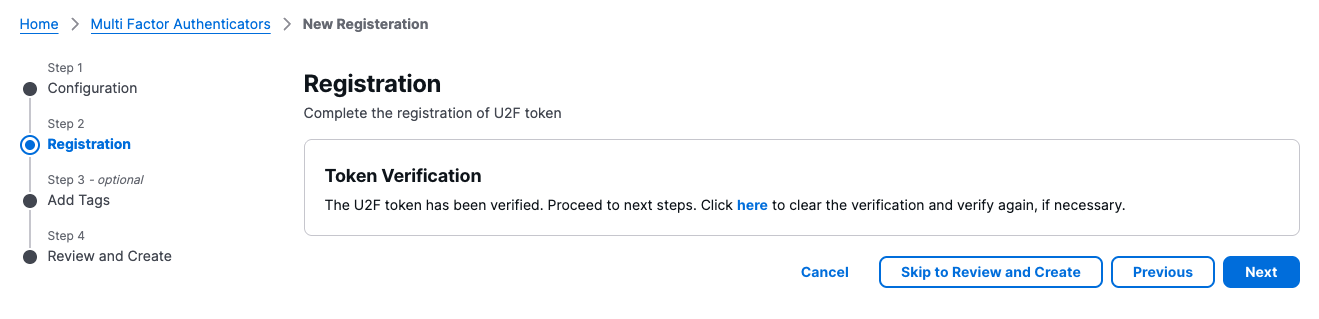
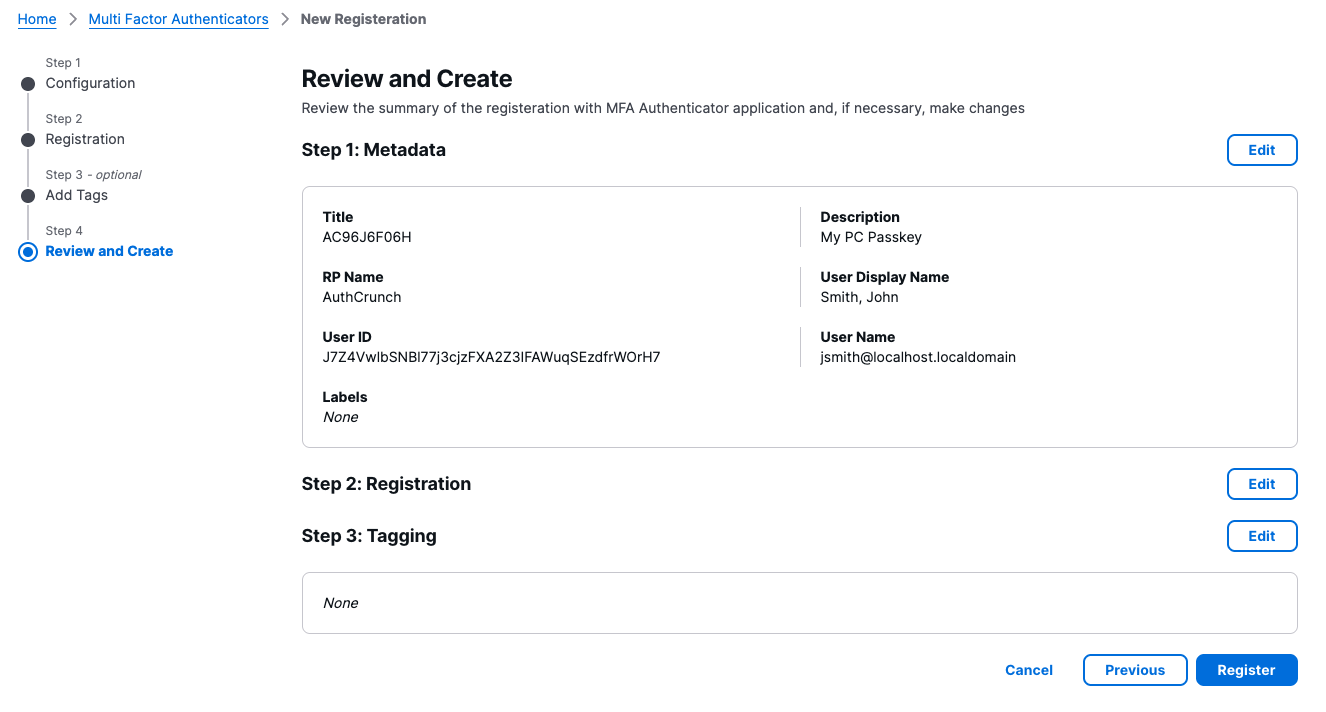
Enroll and verify the credential in Profile first. Browser and operating-system prompts vary; a security key, platform authenticator, or supported passkey manager can perform the ceremony. AuthCrunch's UI labels this credential U2F.
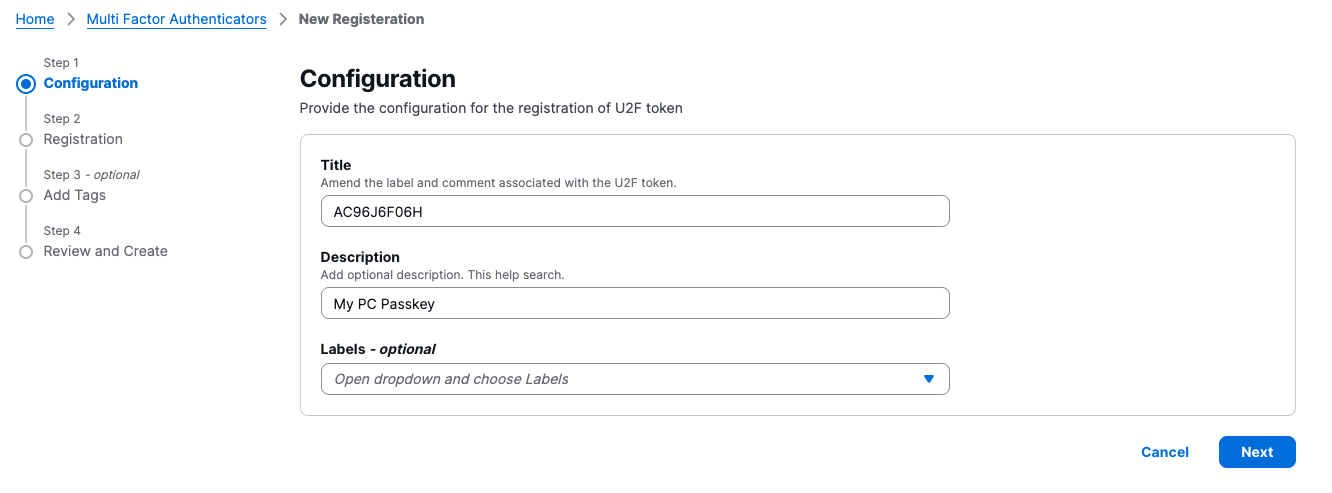
WebAuthn enrollment and verification screens
For a u2f or compatible mfa checkpoint, send challenge_response: "webauthn"
with the current sandbox fields. The response's next_challenge begins with
mfa:u2f: followed by standard Base64-encoded JSON options. This issues a
challenge; it does not finish authentication.
Use the browser's WebAuthn API to produce the signed assertion. AuthCrunch
expects challenge_response to contain standard Base64-encoded JSON in its
assertion request format:
id, type, auth_data_encoded, client_data_encoded, and
signature_encoded. This is not the options object echoed back. The server
checks the challenge, public credential, origin, relying-party binding, and
signature before advancing. A curl-only client cannot simulate a hardware
assertion by copying the example's challenge text.
Successful Authentication
Completion returns authenticated: true and an access token:
{
  "authenticated":true,
  "access_token":"opaque-example-access-jwt",
  "access_token_name":"access_token"
}
The token name depends on configuration. Inspect the actual response and cookie policy. Ordinary login does not automatically issue a refresh JWT. When refresh sessions are explicitly enabled, browser and native transports have different credential delivery rules; refresh credentials are opaque, rotating, and must not be used as access tokens. Never infer refresh behavior from an older response example.
Account API-key login
A provisioned local account can use a separate access-only exchange:
{"realm":"local","api_key":"replace-with-the-private-account-key"}
Send this body to POST /auth/login with JSON selected. Do not include a
username, password, sandbox checkpoint, or body-refresh selection. The account
must have a configured API key and satisfy
its direct authentication requirements; a key does not bypass explicit MFA.
Successful authentication returns an access credential, without a refresh
family, browser Profile session, or browser OIDC session. Use the returned
access-token name when constructing a header. The Go client
implements this exchange; the local management CLI
is a separate administrative interface.
Beacon API
A JSON-selected GET /auth/beacon checks the access token. A valid identity
returns HTTP 200 with the literal body OK. An unauthenticated or invalid
credential is denied; the JSON error response is not the success format.
curl --fail-with-body --silent --show-error \
  "${AUTH_PORTAL_BASE_URL}/beacon" \
  -H 'Accept: application/json' \
  -H "Authorization: Bearer ${AUTHCRUNCH_ACCESS_TOKEN}"
This checks authentication, not an application's ACL or local Profile session permissions. A successful beacon does not prove that a specific resource is allowed.
User Identity API
A JSON-selected GET /auth/whoami returns the validated portal identity.
Without a valid access token the request is denied. The HTML form of the route
is the portal's identity page.
Standard Response
curl --fail-with-body --silent --show-error \
  "${AUTH_PORTAL_BASE_URL}/whoami?format=json" \
  -H "Authorization: Bearer ${AUTHCRUNCH_ACCESS_TOKEN}"
The result contains configured claims such as sub, email, realm, roles,
iss, iat, nbf, exp, and jti. Claim presence depends on the source and
transforms. It is not a mutable local account record.
Probe Response
Add probe=true to include authenticated and expires_in, the remaining
seconds before the access token expires. This helps a client decide when to
reauthenticate or use a separately configured refresh flow. It does not extend
the token's lifetime. probe=true takes precedence over id_token=true if
both are supplied.
Identity Token Response
An OAuth/OIDC provider can optionally enable a cookie for its upstream ID token:
# Inside the existing oauth identity provider block:
enable id token cookie id_token AUTHP_ID_TOKEN
With that configuration and cookie present, whoami?format=json&id_token=true
can add the original upstream id_token to the portal claim response. Without
it, the endpoint returns ordinary portal claims. This is not an upstream token
refresh or introspection call, and the ID token is not the portal access token.
Enabling it deliberately exposes that upstream credential to the authenticated
caller; use it only when the integration requires the original token.
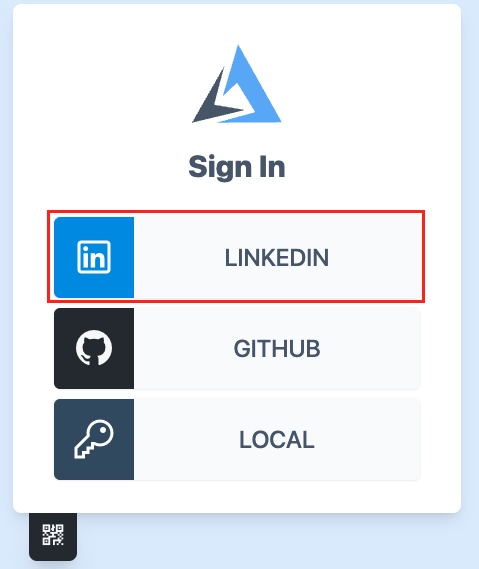
Upstream ID-token inspection screens
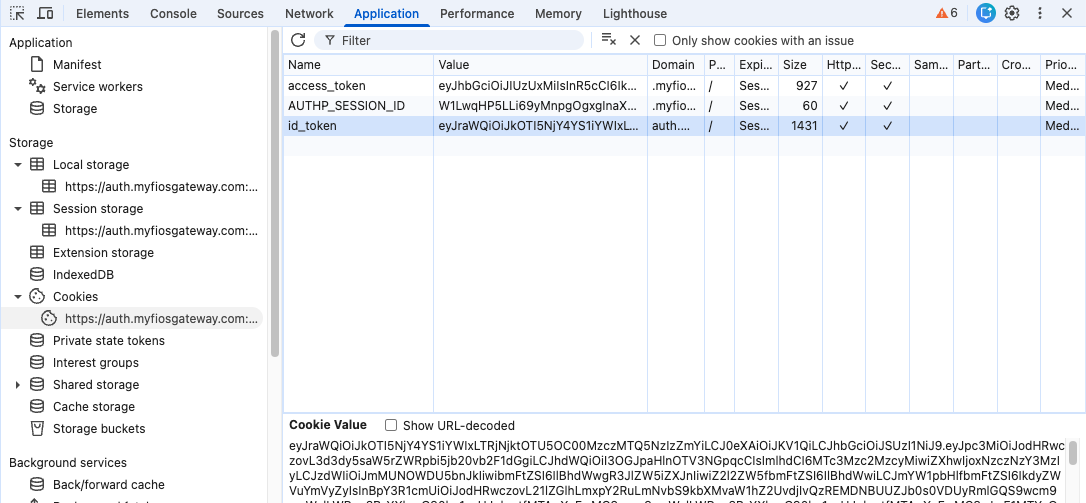
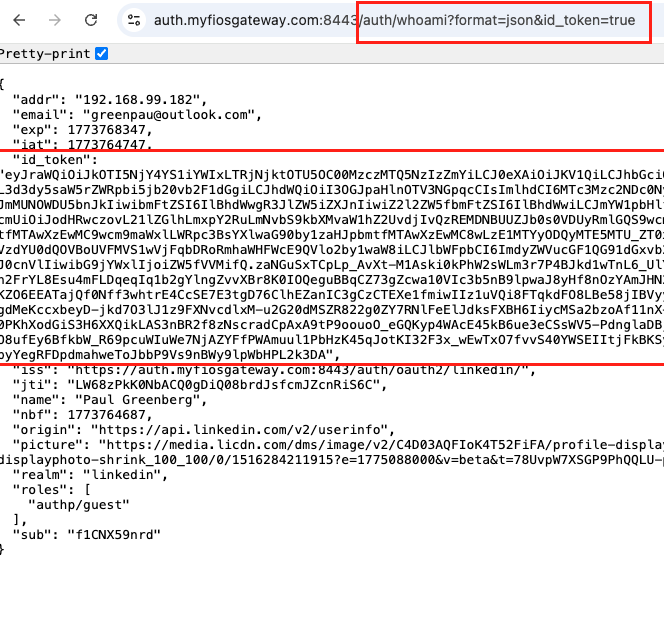
The LinkedIn screenshots are a preserved March 2026 example. Cookie names and
scopes must match your provider configuration; the screenshot shows id_token,
not the custom name in the fragment above. The visible tokens are historical
and must never be copied into an integration.
Agentic Prompts
Copy a prompt into your LLM to explore this topic. Each prompt prioritizes upstream repository guidance and code over this page, and asks for version-aware reasoning.
Trace JSON checkpoint state
Help me understand Portal API.

Primary authorities (take precedence over website documentation):
https://github.com/greenpau/caddy-security/blob/main/AGENTS.md
https://github.com/greenpau/caddy-security/tree/main/.codex/skills
https://github.com/greenpau/go-authcrunch/blob/main/AGENTS.md
https://github.com/greenpau/go-authcrunch/tree/main/.codex/skills
Read each repository's root AGENTS.md first, then any scoped AGENTS.md that
applies to inspected paths. Read the relevant SKILL.md files and follow their
implementation and test references.

Relevant skills to locate: authentication-portal-api,
authentication-portal-challenges, authentication-client.

Secondary reference:
https://docs.authcrunch.com/docs/authenticate/api/portal-api

If a source is inaccessible, ask me to paste its relevant text. Identify the
versions your answer applies to; main may be newer than my release. Resolve
disagreements using code and tests, and flag unverified claims. Use synthetic
credentials and redacted examples; explain proposed checks before any changes.

Walk through username/realm, rotating sandbox fields, password, required
TOTP/WebAuthn, and authenticated completion. Use fake secrets. Explain why
receiving a sandbox or completing one checkpoint is not permission to treat
the user as logged in.
Read a WebAuthn continuation
Help me understand Portal API.

Primary authorities (take precedence over website documentation):
https://github.com/greenpau/caddy-security/blob/main/AGENTS.md
https://github.com/greenpau/caddy-security/tree/main/.codex/skills
https://github.com/greenpau/go-authcrunch/blob/main/AGENTS.md
https://github.com/greenpau/go-authcrunch/tree/main/.codex/skills
Read each repository's root AGENTS.md first, then any scoped AGENTS.md that
applies to inspected paths. Read the relevant SKILL.md files and follow their
implementation and test references.

Relevant skills to locate: authentication-portal-api,
authentication-portal-challenges, authentication-client.

Secondary reference:
https://docs.authcrunch.com/docs/authenticate/api/portal-api

If a source is inaccessible, ask me to paste its relevant text. Identify the
versions your answer applies to; main may be newer than my release. Resolve
disagreements using code and tests, and flag unverified claims. Use synthetic
credentials and redacted examples; explain proposed checks before any changes.

Compare returned WebAuthn options with the signed assertion expected by the
server. Explain the browser’s role, encoding format, origin/relying-party
checks, and current sandbox secret. Do not pretend a curl request can complete
a hardware assertion by echoing challenge options.
Diagnose response selection and expiry
Help me understand Portal API.

Primary authorities (take precedence over website documentation):
https://github.com/greenpau/caddy-security/blob/main/AGENTS.md
https://github.com/greenpau/caddy-security/tree/main/.codex/skills
https://github.com/greenpau/go-authcrunch/blob/main/AGENTS.md
https://github.com/greenpau/go-authcrunch/tree/main/.codex/skills
Read each repository's root AGENTS.md first, then any scoped AGENTS.md that
applies to inspected paths. Read the relevant SKILL.md files and follow their
implementation and test references.

Relevant skills to locate: authentication-portal-api,
authentication-portal-challenges, authentication-client.

Secondary reference:
https://docs.authcrunch.com/docs/authenticate/api/portal-api

If a source is inaccessible, ask me to paste its relevant text. Identify the
versions your answer applies to; main may be newer than my release. Resolve
disagreements using code and tests, and flag unverified claims. Use synthetic
credentials and redacted examples; explain proposed checks before any changes.

Help me investigate HTML instead of JSON, a stale sandbox secret, expired
sandbox, wrong realm, or next_challenge mismatch. Ask for redacted response
shape and headers. Keep sequential continuations separate from credential
replay and explain when to restart login.
Compare identity probes and credentials
Help me understand Portal API.

Primary authorities (take precedence over website documentation):
https://github.com/greenpau/caddy-security/blob/main/AGENTS.md
https://github.com/greenpau/caddy-security/tree/main/.codex/skills
https://github.com/greenpau/go-authcrunch/blob/main/AGENTS.md
https://github.com/greenpau/go-authcrunch/tree/main/.codex/skills
Read each repository's root AGENTS.md first, then any scoped AGENTS.md that
applies to inspected paths. Read the relevant SKILL.md files and follow their
implementation and test references.

Relevant skills to locate: authentication-portal-api,
authentication-portal-challenges, authentication-client.

Secondary reference:
https://docs.authcrunch.com/docs/authenticate/api/portal-api

If a source is inaccessible, ask me to paste its relevant text. Identify the
versions your answer applies to; main may be newer than my release. Resolve
disagreements using code and tests, and flag unverified claims. Use synthetic
credentials and redacted examples; explain proposed checks before any changes.

Explain beacon success, whoami, probe expiry, and optional upstream id_token
exposure. Contrast those checks with app ACLs and live Profile authority.
Compare ordinary login, explicitly enabled body refresh, and access-only
account API-key exchange.
Design a client state-machine exercise
Help me understand Portal API.

Primary authorities (take precedence over website documentation):
https://github.com/greenpau/caddy-security/blob/main/AGENTS.md
https://github.com/greenpau/caddy-security/tree/main/.codex/skills
https://github.com/greenpau/go-authcrunch/blob/main/AGENTS.md
https://github.com/greenpau/go-authcrunch/tree/main/.codex/skills
Read each repository's root AGENTS.md first, then any scoped AGENTS.md that
applies to inspected paths. Read the relevant SKILL.md files and follow their
implementation and test references.

Relevant skills to locate: authentication-portal-api,
authentication-portal-challenges, authentication-client.

Secondary reference:
https://docs.authcrunch.com/docs/authenticate/api/portal-api

If a source is inaccessible, ask me to paste its relevant text. Identify the
versions your answer applies to; main may be newer than my release. Resolve
disagreements using code and tests, and flag unverified claims. Use synthetic
credentials and redacted examples; explain proposed checks before any changes.

Create a state-machine test plan for password success followed by MFA, wrong
response, expired sandbox, completion, identity probe, and uncertain failure.
Include API-key login that does not create a Profile/refresh/OIDC browser
session. Never use live credentials in the exercise.
Source Code References
Start with the code search, then follow the parser, runtime, and tests relevant
to this topic. These links target main; use GitHub's branch/tag selector to
compare them with your installed release.
- Search this topic in both repositories — searches topic-specific symbols and paths across both codebases.
- caddy-security: plugin_authn_json_login_test.go — tests JSON login through the Caddy portal handler.
- go-authcrunch: pkg/authn/handle_json_login.go — advances stateful JSON login checkpoints and returns completion results.
- go-authcrunch: pkg/authn/handle_json_api_key_login.go — implements the separate access-only account API-key exchange.
- go-authcrunch: pkg/authn/handle_json_whoami.go — returns validated identity, expiry probes, and optional upstream-token data.
- go-authcrunch: pkg/authn/handle_json_beacon.go — checks a JSON-selected caller’s access credential.
- go-authcrunch: pkg/authn/authentication_challenges_sequence_e2e_test.go — tests ordered authentication sequences through portal requests.