User Registration
Registration collects a local account request and verifies its email before saving a password-hashed record in a separate registration dropbox. It does not automatically approve an account in the active login database or grant an application role. Plan the administrator's approval/provisioning step before offering this form to users.


Verified email creates a dropbox request, not an active account. The implemented registration path verifies form requirements and an emailed passcode, then writes a separate dropbox. Administrative notification follows that write. Approval and active-store provisioning are a separate operator-owned workflow; the released final screen does not implement that transfer.
Configuration
This complete example attaches a registry to localdb and the explicit local
realm. The portal enables that store; there is no separate enable registration
portal directive. It uses a loopback test mail sink at port 1025.
# Local registration collection: caddy-security v1.3.0 / go-authcrunch v1.3.8.
# SMTP is a loopback-only disposable mail sink, not a production mail service.
{
	security {
		local identity store localdb {
			realm local
			path /var/lib/authcrunch/users.json
		}

		messaging email provider localmail {
			address 127.0.0.1:1025
			protocol smtp
			passwordless
			sender no-reply@example.com "Example registration"
		}

		user registration localregistry {
			dropbox /var/lib/authcrunch/registrations.json
			title "Request an account"
			code {env.AUTHCRUNCH_REGISTRATION_CODE}
			require accept terms
			link terms https://auth.example.com/terms
			link privacy https://auth.example.com/privacy
			allow exact domain example.com
			email provider localmail
			admin email admin@example.com
			identity store localdb local
		}

		authentication portal myportal {
			enable identity store localdb
			crypto key sign-verify {env.AUTHCRUNCH_SIGNING_KEY}
		}
	}
}

auth.example.com {
	route {
		redir /auth /auth/ 308
		authenticate /auth/* with myportal
	}
}
Set private AUTHCRUNCH_REGISTRATION_CODE and AUTHCRUNCH_SIGNING_KEY values,
prepare private writable database paths, and provide the terms/privacy pages.
For deployment, replace the test mail sink with a configured
messaging provider and credentials. passwordless
means no SMTP authentication here, not passwordless user registration.
| Setting | Purpose |
|---|---|
dropbox | Private registration database, distinct from the active user database |
identity store localdb local | Store nickname and explicit registration realm |
code | Invitation value entered on the form; distinct from the emailed verification passcode |
require accept terms, link terms, link privacy | Required acknowledgement and published policy links |
require domain mx | Optional DNS MX check; not proof of mailbox ownership |
email provider, admin email | Confirmation delivery and administrator notification |
The historical disabled on setting is not supported by this registry grammar.
To stop offering registration, remove its registry definition from the deployed
configuration. A registration password must be a real password; hash-import
strings are deliberately rejected on this untrusted boundary.
Email Domain Restrictions
Domain Restrictions Syntax
<allow|deny> [exact|partial|prefix|suffix|regex] domain PATTERN
Rules are evaluated in order; the first match decides. With rules present, the unmatched default is the opposite of the last configured action. Use exact allow rules for a closed domain list. Partial/prefix/suffix and unanchored regex rules can admit lookalike names; a domain restriction is not an email-verification or organization-membership assertion.
Trusted Email Domains
allow exact domain example.com
allow exact domain subsidiary.example.com
Unmatched domains are denied because the last action is allow. These two domains are explicit; subdomains are not automatically included.
Untrusted Email Domains
deny exact domain blocked.example
A deny-only list allows unmatched domains. It is not equivalent to a closed invitation policy and does not prevent arbitrary other email domains.
Mixture of Allow and Deny Domains
For deny ... then allow ..., unmatched domains are denied. Reversing that
order makes unmatched domains allowed. Overlapping rules use the first match.
Test intended, unintended and lookalike domains before exposing the form.
Registration workflow
Accessing the Registration Page
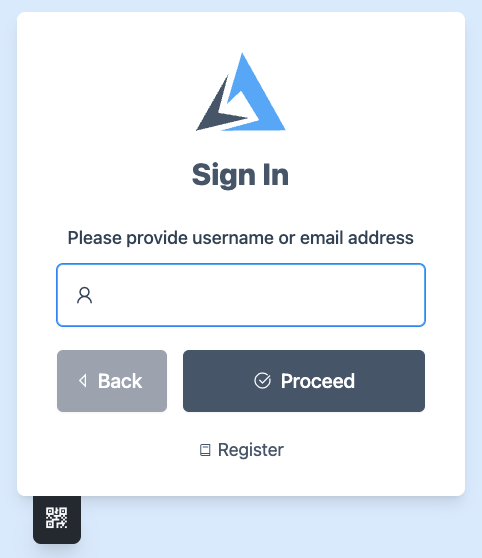
Open /auth/register/local or the login page's registration link. Registration
is for anonymous users, not an account-edit screen for an already signed-in user.
Filling Out the Registration Form
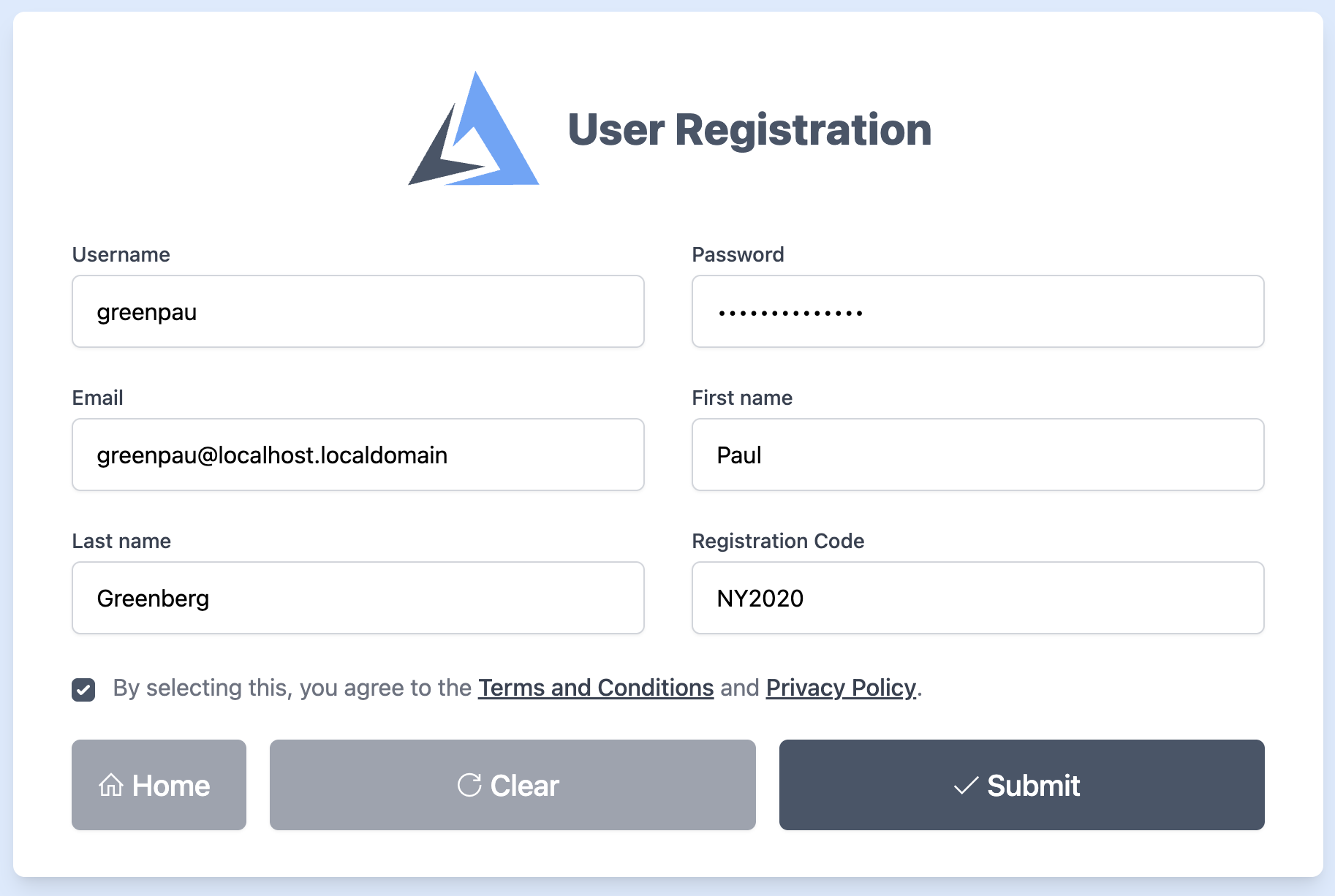
Supply the username, email, password and required acknowledgement/invitation code. The form and backend enforce their configured policies. Do not submit a password hash or assume an email suffix alone grants application membership.
Initial Confirmation
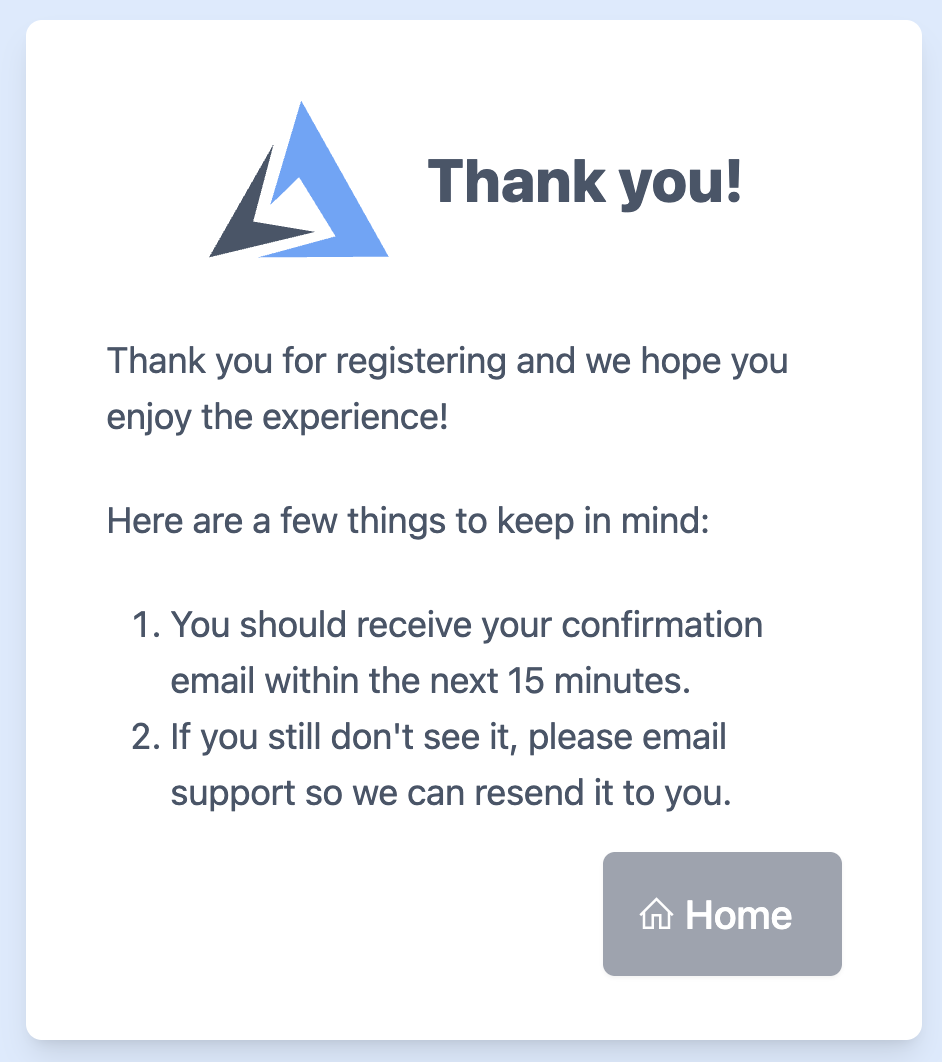
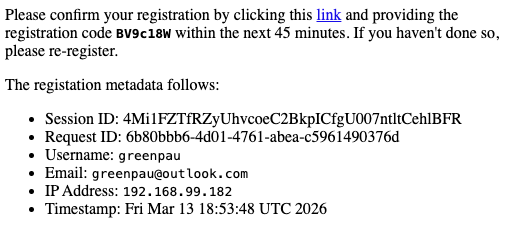
The portal sends a confirmation message and retains temporary registration state. Restart loses that pending state. The released cache defaults to a 60-minute lifetime. The screen's 15-minute delivery estimate is not an expiry deadline, and the older email's 45-minute wording differs from that cache lifetime. Complete promptly and start again after expiry.
Receiving the Verification Email
Use the new link and passcode delivered to your own mailbox. The invitation code from configuration and the generated emailed passcode serve different purposes. Do not reuse values visible in the historical demonstration below.
Entering the Passcode
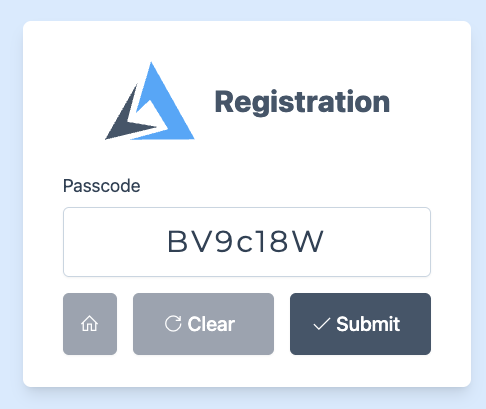
The acknowledgement verifies the generated passcode, consumes pending state and writes the account request into the registration dropbox. An expired or mismatched request does not create an active account.
Administrative Approval
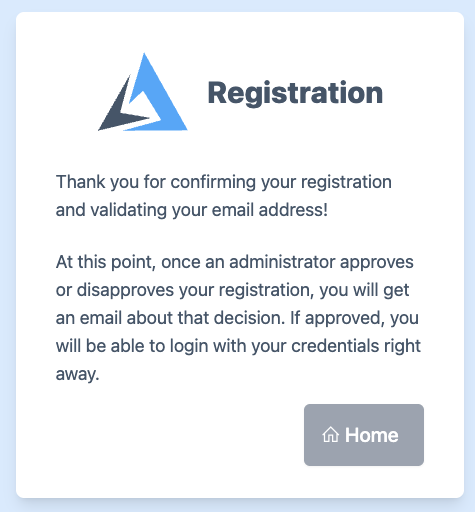
The portal attempts an administrator notification after storing the request. A delivery failure is logged and does not undo the dropbox record. The released implementation has no complete approval UI or automated dropbox-to-active-store transfer. The final screen's promise of an approval email describes the intended workflow, not a completed administrative service.
Review requests and provision approved accounts through your established local
account management process. Offline record migration must stop both writers,
back up both databases, preserve schema/IDs/credential metadata and assign only
reviewed roles. Do not casually paste an entire registration database over
users.json. Keep an application role separate from the request's portal role,
and verify an approved user's fresh login and denied access before that grant.
Historical registration screens and email
Testing with Mock Email Server
Use an isolated, loopback-only SMTP sink on port 1025 with disposable accounts. Inspect confirmation and administrator messages locally. Provider template paths are accepted but registration renders embedded templates in this release; see messaging limits. Such a sink prints or stores verification credentials; it is not production delivery.
Test the permitted domain, denied/lookalike domains, wrong invitation code, missing terms, duplicate username/email, wrong verification passcode, expiry and a restart between submission and verification. Confirm that the active user store is unchanged until your separate provisioning step. Stop the mail sink and test portal when finished.
Multiple Realms
Use a distinct registration nickname and dropbox per enabled local store.
Supply the intended realm explicitly in identity store NICKNAME REALM and visit
/auth/register/REALM. A portal accepts one attached registry per store. Sharing
a dropbox or confusing the nickname with the realm defeats that separation.
Agentic Prompts
Copy a prompt into your LLM to explore this topic. Each prompt prioritizes upstream repository guidance and code over this page, and asks for version-aware reasoning.
Trace request versus active account
Help me understand User Registration.

Primary authorities (take precedence over website documentation):
https://github.com/greenpau/caddy-security/blob/main/AGENTS.md
https://github.com/greenpau/caddy-security/tree/main/.codex/skills
https://github.com/greenpau/go-authcrunch/blob/main/AGENTS.md
https://github.com/greenpau/go-authcrunch/tree/main/.codex/skills
Read each repository's root AGENTS.md first, then any scoped AGENTS.md that
applies to inspected paths. Read the relevant SKILL.md files and follow their
implementation and test references.

Relevant skills to locate: configuration-registrations,
configuration-messaging, local-identity-database.

Secondary reference:
https://docs.authcrunch.com/docs/authenticate/local/user-registration

If a source is inaccessible, ask me to paste its relevant text. Identify the
versions your answer applies to; main may be newer than my release. Resolve
disagreements using code and tests, and flag unverified claims. Use synthetic
credentials and redacted examples; explain proposed checks before any changes.

Explain form submission, invitation code, email passcode, temporary state,
verified dropbox record, and separate administrator provisioning. Distinguish
portal acknowledgement text from an implemented approval service. Show why
registration does not automatically grant an application role.
Read domain-rule order
Help me understand User Registration.

Primary authorities (take precedence over website documentation):
https://github.com/greenpau/caddy-security/blob/main/AGENTS.md
https://github.com/greenpau/caddy-security/tree/main/.codex/skills
https://github.com/greenpau/go-authcrunch/blob/main/AGENTS.md
https://github.com/greenpau/go-authcrunch/tree/main/.codex/skills
Read each repository's root AGENTS.md first, then any scoped AGENTS.md that
applies to inspected paths. Read the relevant SKILL.md files and follow their
implementation and test references.

Relevant skills to locate: configuration-registrations,
configuration-messaging, local-identity-database.

Secondary reference:
https://docs.authcrunch.com/docs/authenticate/local/user-registration

If a source is inaccessible, ask me to paste its relevant text. Identify the
versions your answer applies to; main may be newer than my release. Resolve
disagreements using code and tests, and flag unverified claims. Use synthetic
credentials and redacted examples; explain proposed checks before any changes.

Use synthetic allow/deny rules to predict first-match and unmatched behavior.
Compare closed allow lists with deny-only lists and lookalike names. Explain
why domain matching, MX lookup, mailbox verification, and organization
membership establish different facts.
Diagnose pending verification
Help me understand User Registration.

Primary authorities (take precedence over website documentation):
https://github.com/greenpau/caddy-security/blob/main/AGENTS.md
https://github.com/greenpau/caddy-security/tree/main/.codex/skills
https://github.com/greenpau/go-authcrunch/blob/main/AGENTS.md
https://github.com/greenpau/go-authcrunch/tree/main/.codex/skills
Read each repository's root AGENTS.md first, then any scoped AGENTS.md that
applies to inspected paths. Read the relevant SKILL.md files and follow their
implementation and test references.

Relevant skills to locate: configuration-registrations,
configuration-messaging, local-identity-database.

Secondary reference:
https://docs.authcrunch.com/docs/authenticate/local/user-registration

If a source is inaccessible, ask me to paste its relevant text. Identify the
versions your answer applies to; main may be newer than my release. Resolve
disagreements using code and tests, and flag unverified claims. Use synthetic
credentials and redacted examples; explain proposed checks before any changes.

Help me classify wrong invitation code, missing terms, duplicate account data,
mail delivery, wrong passcode, expired cache, and restart. Ask for redacted
state/status only. Separate historical screen/email timing from actual
configured cache expiry.
Plan a private mail-sink exercise
Help me understand User Registration.

Primary authorities (take precedence over website documentation):
https://github.com/greenpau/caddy-security/blob/main/AGENTS.md
https://github.com/greenpau/caddy-security/tree/main/.codex/skills
https://github.com/greenpau/go-authcrunch/blob/main/AGENTS.md
https://github.com/greenpau/go-authcrunch/tree/main/.codex/skills
Read each repository's root AGENTS.md first, then any scoped AGENTS.md that
applies to inspected paths. Read the relevant SKILL.md files and follow their
implementation and test references.

Relevant skills to locate: configuration-registrations,
configuration-messaging, local-identity-database.

Secondary reference:
https://docs.authcrunch.com/docs/authenticate/local/user-registration

If a source is inaccessible, ask me to paste its relevant text. Identify the
versions your answer applies to; main may be newer than my release. Resolve
disagreements using code and tests, and flag unverified claims. Use synthetic
credentials and redacted examples; explain proposed checks before any changes.

Design loopback-only testing for confirmation/admin messages, wrong codes,
domain restrictions, expiry, and active-store invariance. Explain why SMTP
passwordless is not passwordless account registration and why embedded
template behavior needs source verification. Stop the sink and test portal
afterwards.
Review approval and multiple realms
Help me understand User Registration.

Primary authorities (take precedence over website documentation):
https://github.com/greenpau/caddy-security/blob/main/AGENTS.md
https://github.com/greenpau/caddy-security/tree/main/.codex/skills
https://github.com/greenpau/go-authcrunch/blob/main/AGENTS.md
https://github.com/greenpau/go-authcrunch/tree/main/.codex/skills
Read each repository's root AGENTS.md first, then any scoped AGENTS.md that
applies to inspected paths. Read the relevant SKILL.md files and follow their
implementation and test references.

Relevant skills to locate: configuration-registrations,
configuration-messaging, local-identity-database.

Secondary reference:
https://docs.authcrunch.com/docs/authenticate/local/user-registration

If a source is inaccessible, ask me to paste its relevant text. Identify the
versions your answer applies to; main may be newer than my release. Resolve
disagreements using code and tests, and flag unverified claims. Use synthetic
credentials and redacted examples; explain proposed checks before any changes.

Help me define a reviewed provisioning process with separate dropboxes and
explicit realms. Explain coherent backups and stopped writers before any
offline migration. Quiz me on why copying an entire dropbox over users.json or
trusting a requested portal role is unsafe.
Source Code References
Start with the code search, then follow the parser, runtime, and tests relevant
to this topic. These links target main; use GitHub's branch/tag selector to
compare them with your installed release.
- Search this topic in both repositories — searches topic-specific symbols and paths across both codebases.
- caddy-security: caddyfile_user_registration.go — adapts registration dropboxes, stores, domain rules, and messaging selections.
- go-authcrunch: pkg/registry/local_user_registry.go — collects and verifies registration requests into a separate local dropbox.
- go-authcrunch: pkg/registry/domain_restriction_ruleset.go — evaluates ordered email-domain restrictions.
- go-authcrunch: pkg/registry/cache.go — holds temporary pending registration state and expiry.
- go-authcrunch: pkg/registry/local_user_registry_password_e2e_test.go — tests registration password handling through the provider workflow.